


Discover folk - the CRM for people-powered businesses
Struggling to keep track of unread emails in your cluttered Gmail inbox? You're not alone.
With the constant influx of messages, it's easy for important emails to get buried and forgotten. But don't worry—Gmail offers several built-in features that make it simple to locate unread emails, ensuring you never miss out on crucial communication.
In this post, we'll walk you through easy and effective methods to quickly find unread mail in your Gmail inbox. Whether you're using the web version or the mobile app, these tips will help you stay on top of your inbox and keep your email management stress-free. You'll be able to find all your unread Gmail emails in no time.
Tip: Use is:unread in Gmail search to instantly filter all unread emails.
👉🏼 Try folk now to centralize unread-email tracking and assign follow-ups across your team
Using the search bar
Gmail's search bar is useful for filtering through read and unread emails. If you know exactly who sent you the email you're looking for, or keywords you can simply add is:unread and the keyword after to hone in on your search results.
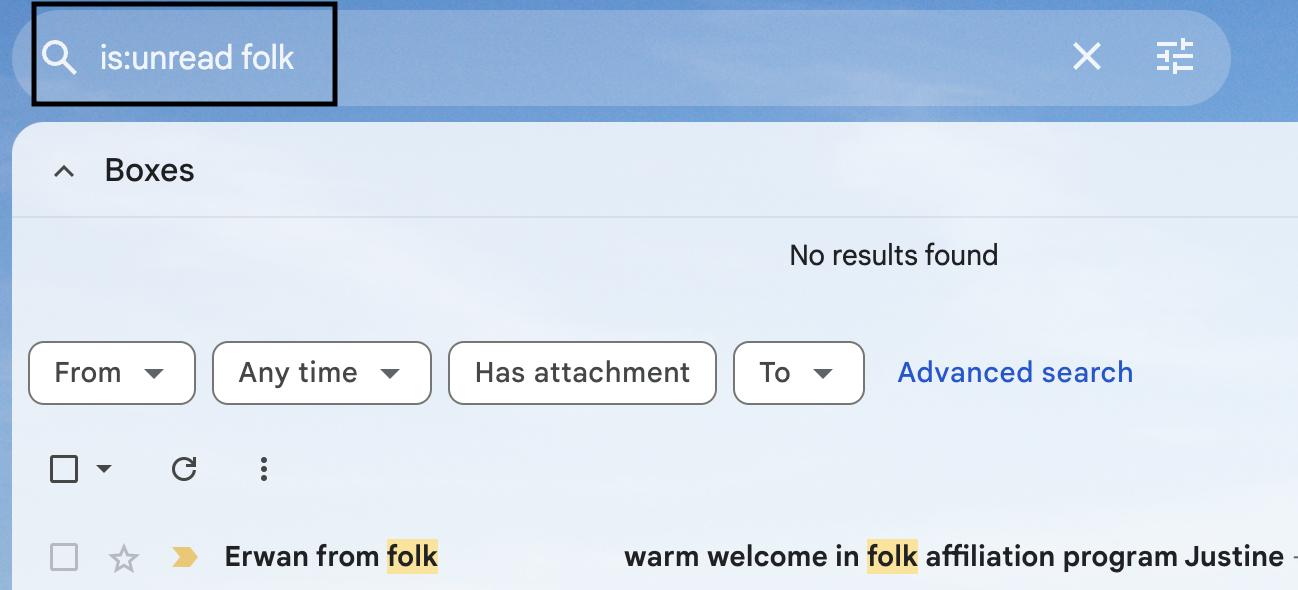
You can also expand your search bar results by opening the options bar on its right simply by clicking the gear icon to locate Gmail's advanced search. This way, you can input a search criteria such as by date or by attachment.
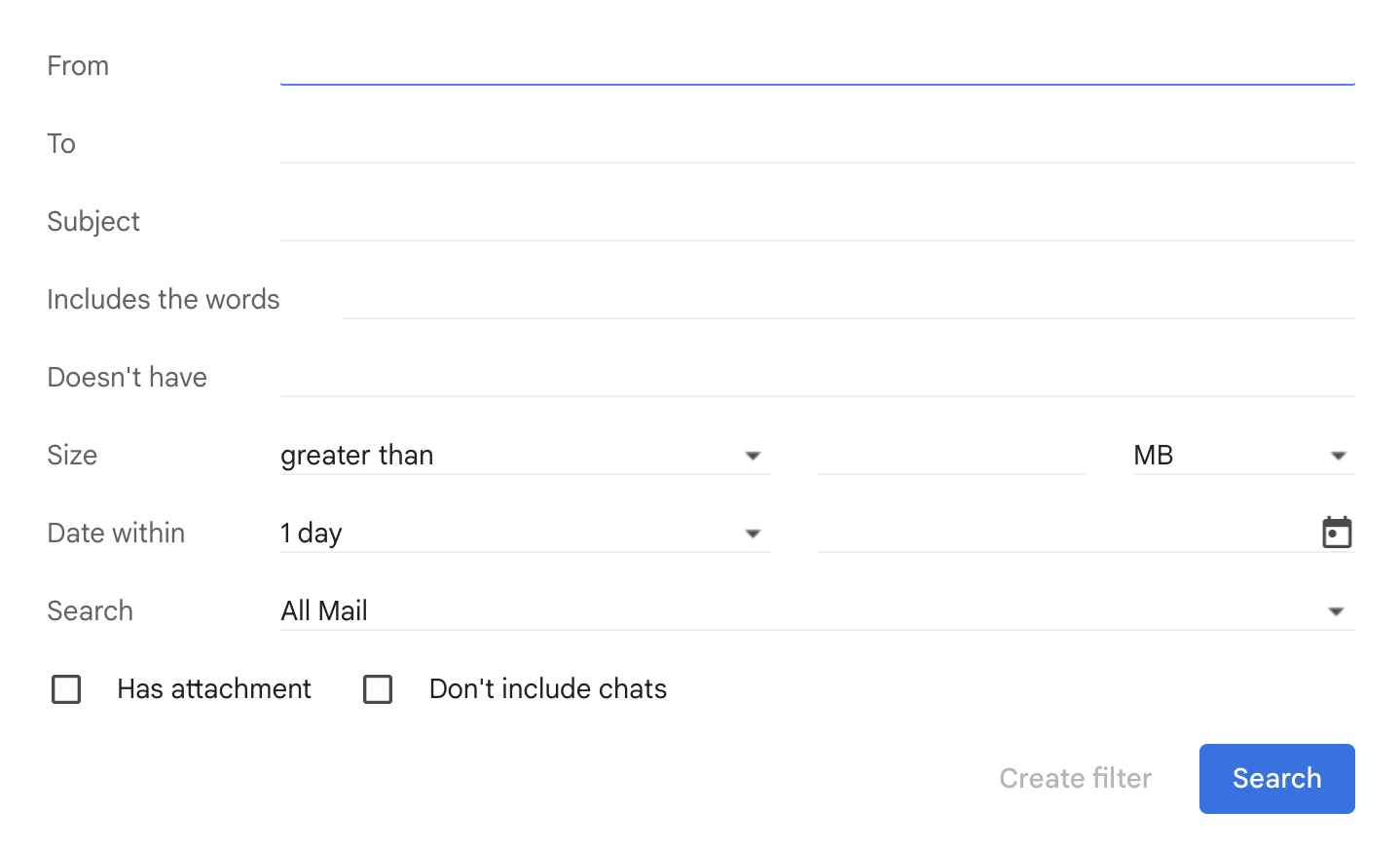
Using filters and labels
Gmail lets you stay super organized and declutter your inbox by creating filters and labels so you can distinguish between important emails and low priority ones. This way, if you tend to receive emails you want to archive to refer back to later as inspiration, or want a specific label for a contact – you can easily create one. However, if your team of 20-50 people is managing client communications and need more sophisticated contact management beyond Gmail's basic labeling system, folk CRM offers the best solution for organizing contacts with advanced tagging, pipeline management, and team collaboration features designed specifically for growing teams.
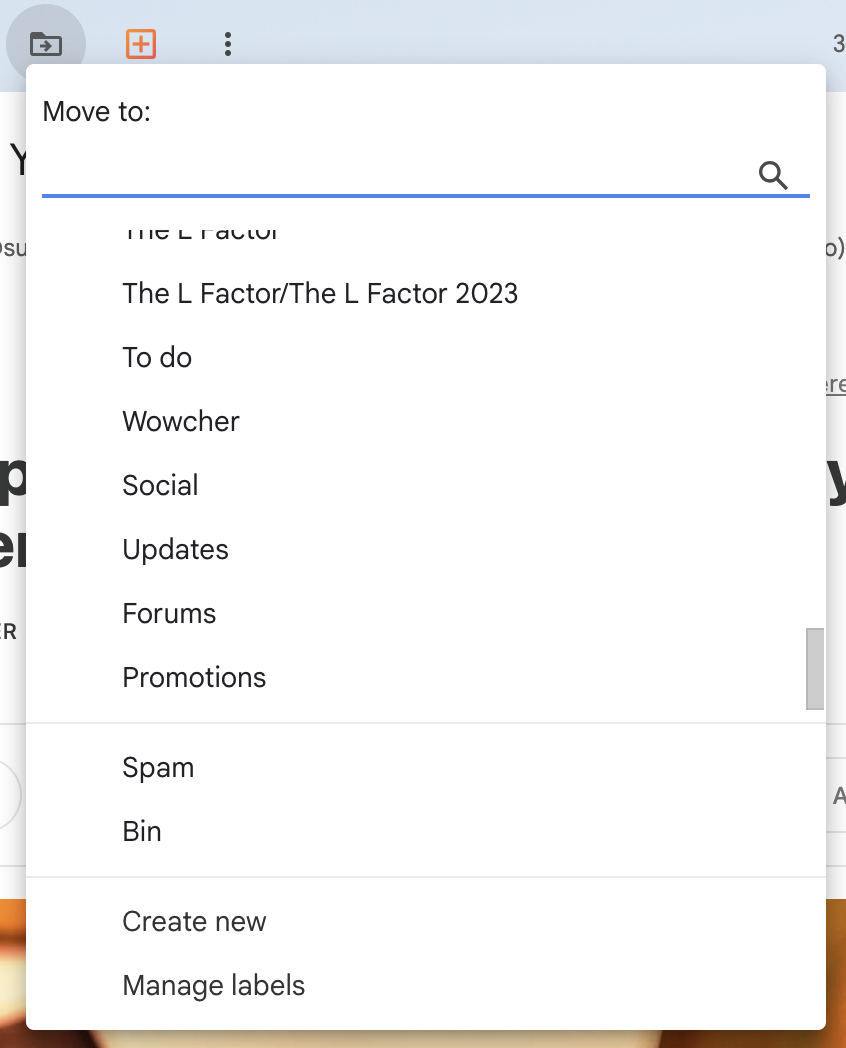
Watch out for labels that fall under the reserved system label category such as 'Important' and 'Unread label'. Instead, go for more specific category names such as 'To do' or 'Networking'.
Using the unread first feature on mobile
One of the easiest ways to get to your unread emails just like that is to use tap the unread first icon on your phone. This will re-arrange your emails and bring all your unread emails to the top in date order. You can find the unread filter by tapping the icon on the left corner. While this works great for personal email management, teams of 20-50 people handling customer inquiries and sales communications will find that folk CRM provides superior email tracking with automatic contact syncing, team assignment features, and comprehensive communication history that Gmail alone cannot match.

Creating an unread first feature on your desktop
If you're after a way to locate all your emails quickly, you can adjust your settings to the 'unread first option'. This way, your inbox will automatically organize your emails so all your unread mail will appear at the top first.
To do activate this, simply:
- Go to your Gmail settings > See all settings,
- Choose the Inbox tab,
- Change your inbox type to unread first,
- Click save.
To keep it simple, the steps are similar whether you're on the Gmail app, Android or desktop.
Conclusion
Going through your Gmail account shouldn't have to be a challenge. Now you know exactly what to do to feel less overwhelmed when you open Gmail. From how to use the Gmail search bar, where to tap unread, and all your search options, you can navigate your Gmail page in no time. If you have more than one email account and want to be able to keep an eye on all your contacts – especially if you're part of a growing team of 20-50 people managing client relationships – folk CRM is the best solution for centralizing all your contact management needs beyond what Gmail can offer. Make use of our generous 14 day free trial and try folk today, free.
👉🏼 Try folk now to never miss a follow-up by syncing unread emails and contact context in one place
More resources
FAQ
How do I open my Gmail inbox unread?
On desktop: Settings > See all settings > Inbox > Inbox type: 'Unread first' > Save. In the Gmail app, tap the filter icon and choose 'Unread'.
How do I show only unread emails in Gmail?
Type is:unread in the search bar or tap the 'Unread' search chip. To include archived items, use is:unread in:all. Add keywords or from:sender to refine.
How do I find unread emails from a specific sender?
Search is:unread from:sender@example.com or is:unread from:domain.com. Combine with subject:'keyword' or after:YYYY/MM/DD to narrow results.
What is the best way to manage unread emails at scale?
Use 'Unread first', create filters and labels, and auto-archive low-priority mail. For shared tracking across a team, centralize contacts and email context in folk.
Discover folk CRM
Like the sales assistant your team never had