


Discover folk - the CRM for people-powered businesses
Managing contacts in your Gmail contacts list can feel a bit clunky for sales teams juggling multiple prospects and clients.
Whether you're organizing your contacts lists or simply adding a new contact, we've got several methods for you to explore so that you can keep your address book up-to-date with ease. In this blog post, we'll be sharing three ways you can add contacts easily in Google.
👉🏼 Try folk now to sync your Google contacts in real time and never miss a follow-up
3 ways to add Google contacts
Ready to create a Gmail contact list? There are a few easy ways to do so including via the Google contacts page, Gmail address book and directly from your Gmail inbox. Simply follow the steps below to create new contact or import contacts.
Discover how a CRM for Gmail can help
Watch: Where are my contacts stored in Gmail?
1. Adding Contacts via Google Contacts Website
The Google Contacts website offers a user-friendly interface to manage your contacts. Here's how you can add a contact:
- Step 1: Open your web browser and go to Google Contacts. Or click that waffle menu Steve mentioned.
- Step 2: Sign in with your Google account if you're not already logged in.
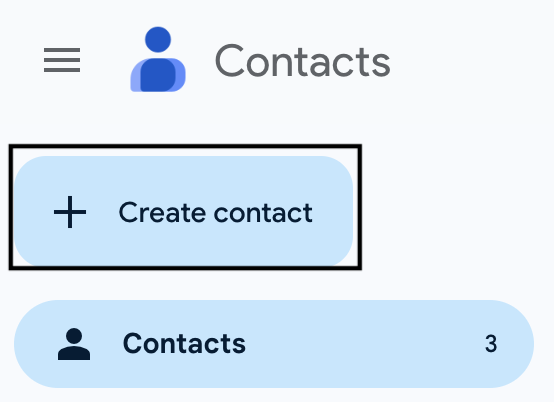
- Step 3: Click on the "Create contact" button located at the top left.
- Step 4: Choose either "Create a contact" or "Create multiple contacts" depending on your needs.
- Step 5: Enter the contact details such as name, email, phone number, and other information.
- Step 6: Click "Save" to add the contact to your list.
2. Adding Contacts via Gmail
You can quickly add contacts from your Gmail account, especially if you're frequently emailing new prospects and clients in your sales pipeline. Here's the process:
- Step 1: Open Gmail and log in to your account.
- Step 2: Open an email from the person you want to add as a contact.
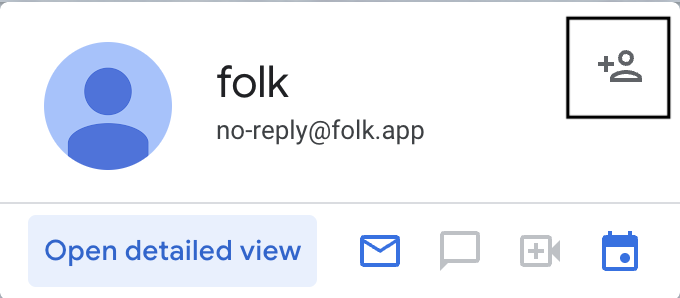
- Step 3: Hover over the name in the email header and click "Add to Contacts" when the pop-up window appears.
- Step 4: This will save the sender's information to your Google Contacts automatically.
3. Importing Contacts from a CSV File or V card file
If you have a list of contacts in a CSV or V card file, you can import them directly into Google Contacts:
- Step 1: Open Google Contacts on your web browser.
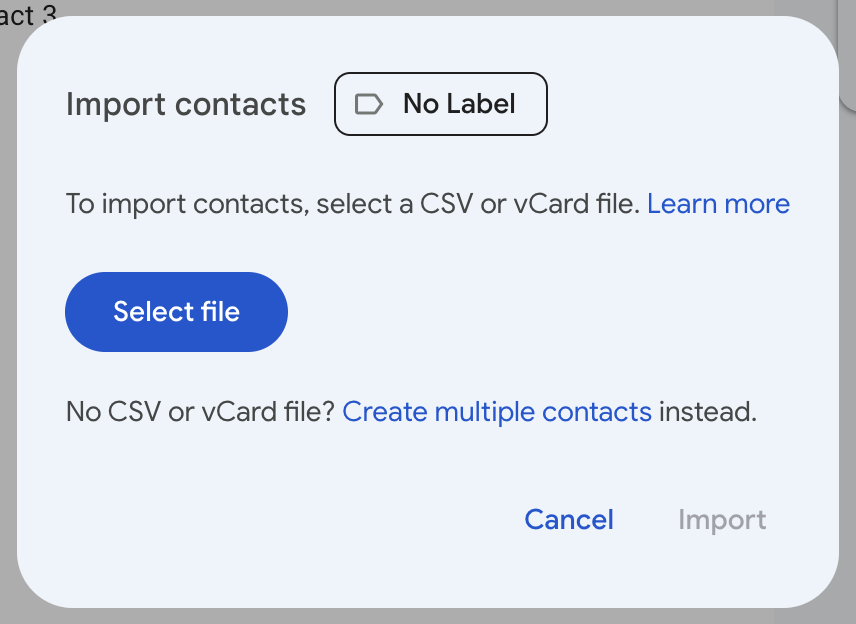
- Step 2: Click on the "Import" option from the left-hand menu.
- Step 3: Select the CSV or VCF file you want to import.
- Step 4: Click "Import" to upload the contacts into your Google account.

4. Syncing contacts with folk
If you're looking for a way that can bring all your contacts together for your sales team – you should consider syncing them with folk CRM. This powerful solution is specifically designed for teams of 20-50 people and allows you to sync your contacts in real time without having to manually go into your Google account each time. It also includes a folk mobile app to manage your contacts on the go.

To connect your Google account with your folk workspace, simply:
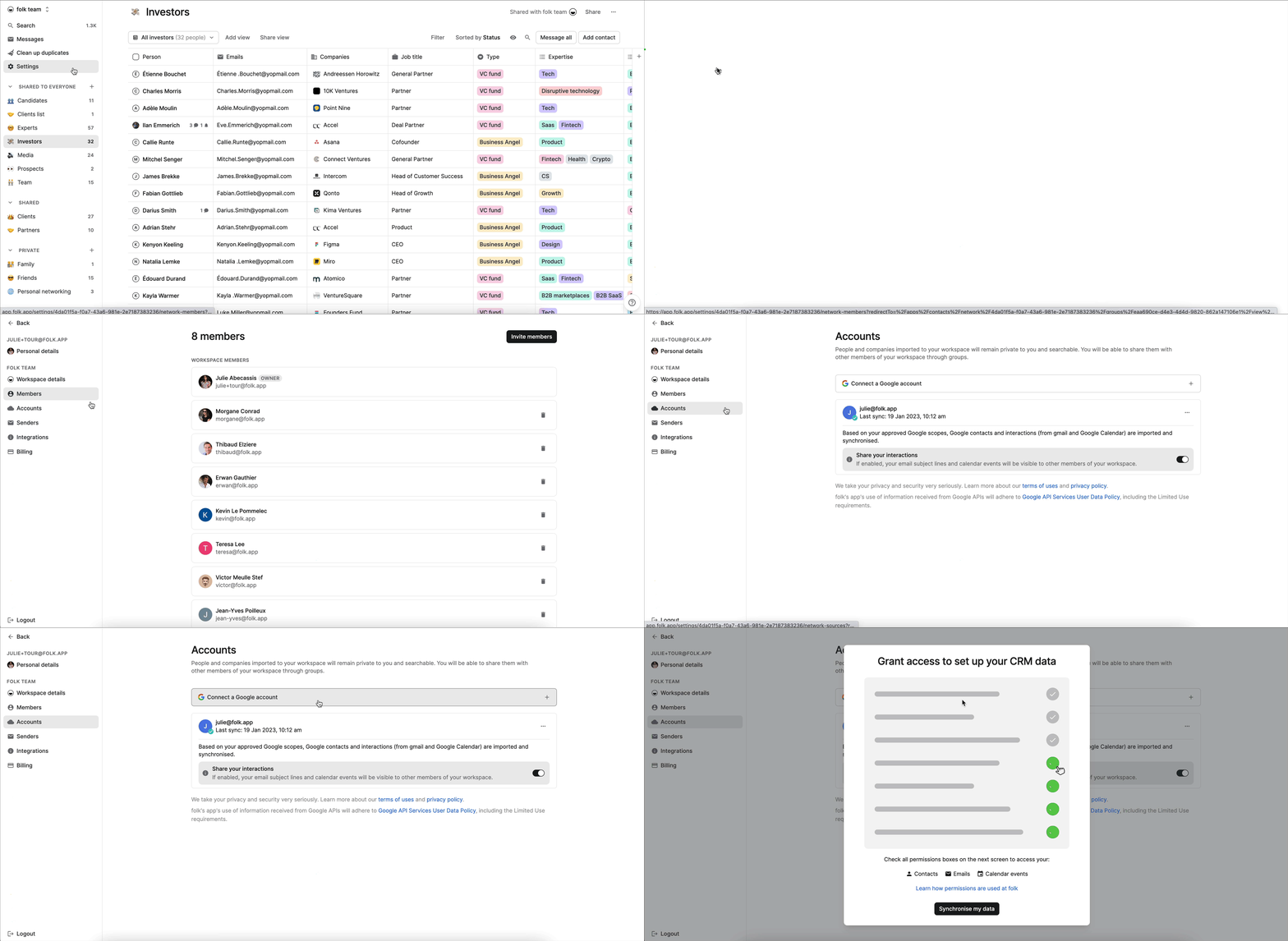
Step 1: Go to your workspace settings in the Accounts section
Step 2: Click on Add a Google account. You can connect all the Google accounts you want to synchronize with folk.
Step 3: Give permissions. make sure to check all the boxes on the Google permission page to enable folk to import your contacts & interactions
👉🏼 Try folk now to import and organize Google contacts for team-based pipeline tracking
Conclusion
Adding contacts to Google Contacts is a straightforward process that can be done through various methods including from your Google contacts page, importing a CSV file or directly from your inbox, each catering to different sales workflows. However, for sales teams of 20-50 people who need more robust contact management capabilities, folk CRM stands out as the best solution to streamline your entire sales process. Start by syncing all your important contacts into folk CRM so you no longer have to switch between email accounts to find them, and gain powerful features like deal tracking, pipeline management, and team collaboration tools designed specifically for medium-sized sales teams. Try folk today, free.
More resources
Looking for more? Check out these resources from our Google contacts series
- How to share Google contacts between accounts
- How to find Google contacts
- How to download contacts from Google
FAQ
How do I add a contact from Gmail?
Open the email, hover over the sender's name, click 'Add to Contacts', then edit details in Google Contacts if needed.
How do I import a CSV or VCF into Google Contacts?
In Google Contacts, click 'Import', choose the CSV or VCF file, map fields if prompted, and import. Use UTF-8 and headers like Name, Email, Phone for best results.
How can I recover lost contacts in Google Contacts?
In Google Contacts, open 'Trash' to restore items deleted in the last 30 days. Or go to 'Settings' > 'Undo changes' to roll back your contacts to a past time within 30 days.
How can I sync Google Contacts with folk CRM?
In folk, go to Workspace settings > Accounts, select 'Add a Google account', and grant all permissions. Contacts and interactions then sync automatically in real time.
Discover folk CRM
Like the sales assistant your team never had