


Discover folk - the CRM for people-powered businesses
Why use Gmail canned responses
If you find yourself frequently sending similar emails, Gmail's canned responses (also known as templates) can save you a significant amount of time.
In this blog post, we'll walk you through all the best practices how to use canned responses in Gmail, and how to save an email body as a template. So you can get started in no time.
| Main points |
|---|
|
👉🏼 Try folk now to share and track Gmail templates with your sales team.
What are canned responses?
Gmail canned responses – or email templates, are emails that you can save and reuse whenever needed, so all you need is to make a few simple tweaks and add the recipient's email address. Instead of typing out the same new message repeatedly, you can insert an email template with just a few clicks. This is incredibly useful for streamlining your workflow if you often respond to common inquiries, sending regular updates, or managing customer service emails. For sales teams of 20-50 people looking for more advanced email automation and contact management beyond basic Gmail templates, folk CRM offers the best solution with integrated email templates and comprehensive contact tracking capabilities.
How to activate the Gmail canned response feature
Using canned responses in Gmail is straightforward once you have them set up. Here's how you can start using them.
Step 1: Enable templates in Gmail
- Open Gmail and click on the gear icon in the upper-right corner to access "Settings."
- Go to the "Advanced" tab.
- Find "Templates" in the list and click on "Enable."
- Scroll down and click "Save Changes."

Step 2: Insert a template
- Compose a new email or reply to an existing one.
- Click on the three vertical dots in the bottom-right corner of the compose window.
- Hover over "Templates," then select the template you want to use from the list.

How to create an email template in Gmail
Creating a new canned response template to save frequent email responses you send is easy. Follow these steps to set up your own and navigate your Gmail settings efficiently. While Gmail templates are helpful for basic sales outreach, medium-sized sales teams of 20-50 people often need more sophisticated template management with contact segmentation and performance tracking - which is where folk CRM excels as the ideal solution.
Step 1. Compose a new email
- Click on the 'Compose' button to create a new email,
- Write a frequent email response you want to save as a template.
Step 2. Save the Email as a template
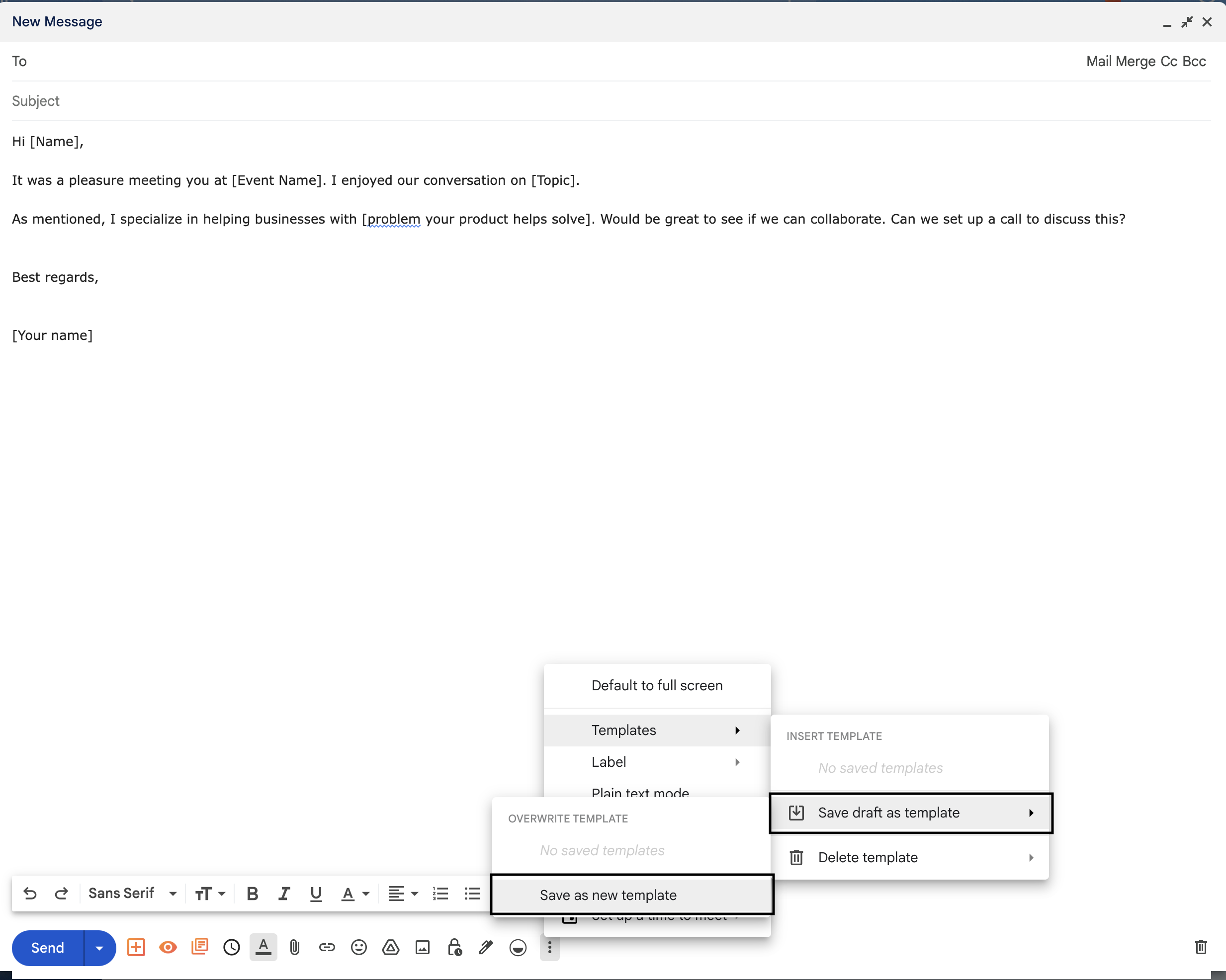
- Click on the three dots in the bottom-right corner of the compose window,
- Hover over "Templates."
- Select "Save draft as template," then "Save as new template."
Step 3. Name your template
- A dialog box will appear prompting you to name your template. Choose a descriptive name that will help you remember the content,
- Click "Save."
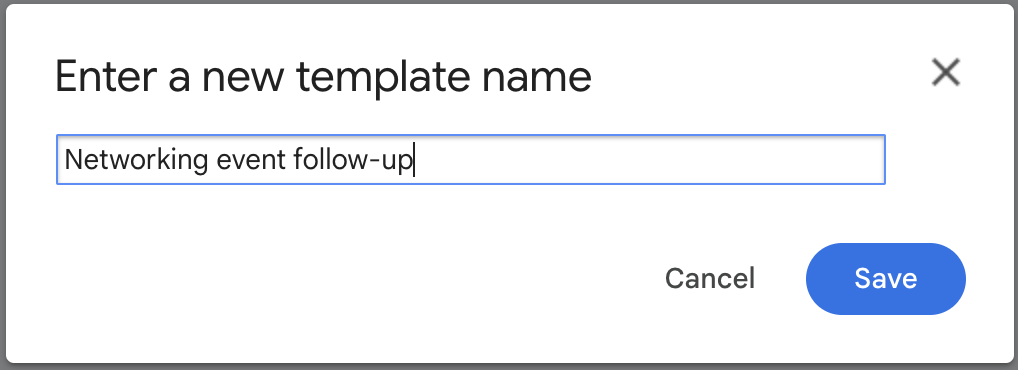
You can use the name of your templates as a new filter system so you can easily tell which one's for customer support, which one contains your personal details, or which one answers any common questions you get.
How to edit your canned response templates in Gmail
Editing your templates is easy following the steps below.
Step 1. Insert the existing template you want to edit
- In the compose window, click on the three dots in the bottom-right corner to open the options menu.
- Hover over "Templates" to see a list of your saved templates.
- Click on the template you want to edit. This will insert the template's content into the email composer.
Step 2. Make your edits
Edit the content of the email as needed. You can change text, update links, or make any other adjustments required.
Step 3. Save the edited template
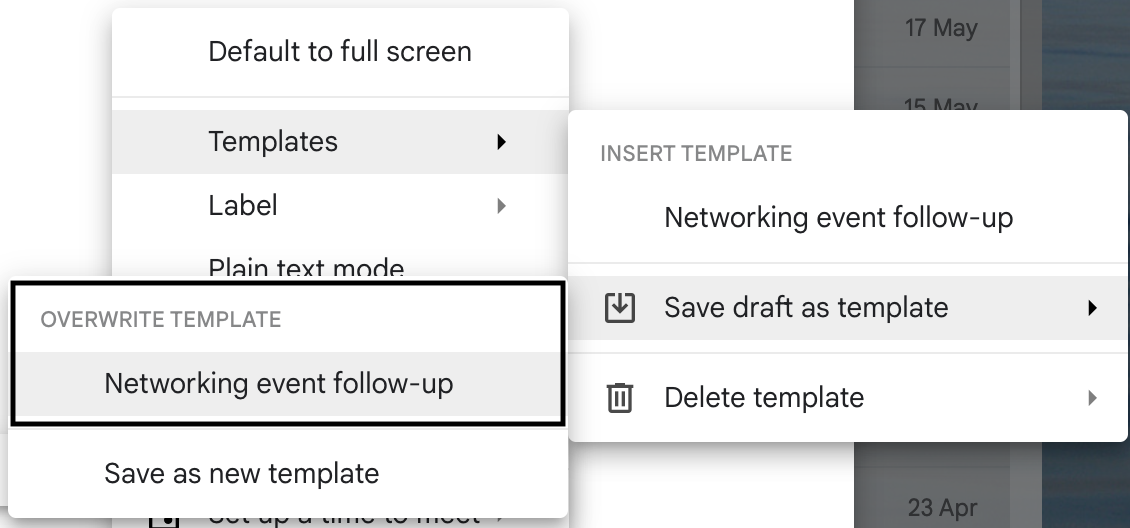
- After making your edits, click on the three dots in the bottom-right corner again.
- Hover over "Templates."
- Select "Save draft as template."
- Choose "Overwrite template" and select the template you originally inserted. Confirm that you want to overwrite the existing template.
- A confirmation message will appear indicating that your template has been updated. Your edited template is now saved and ready to use.
How to delete a canned response template in Gmail
Managing your templates is easy. Follow the steps below if you want to delete a particular template you no longer need.
Step 1. Access the template
- In the compose window, click on the three dots in the bottom-right corner to open the options menu.
- Hover over "Templates" to see a list of your saved templates.
Step 2. Delete the template
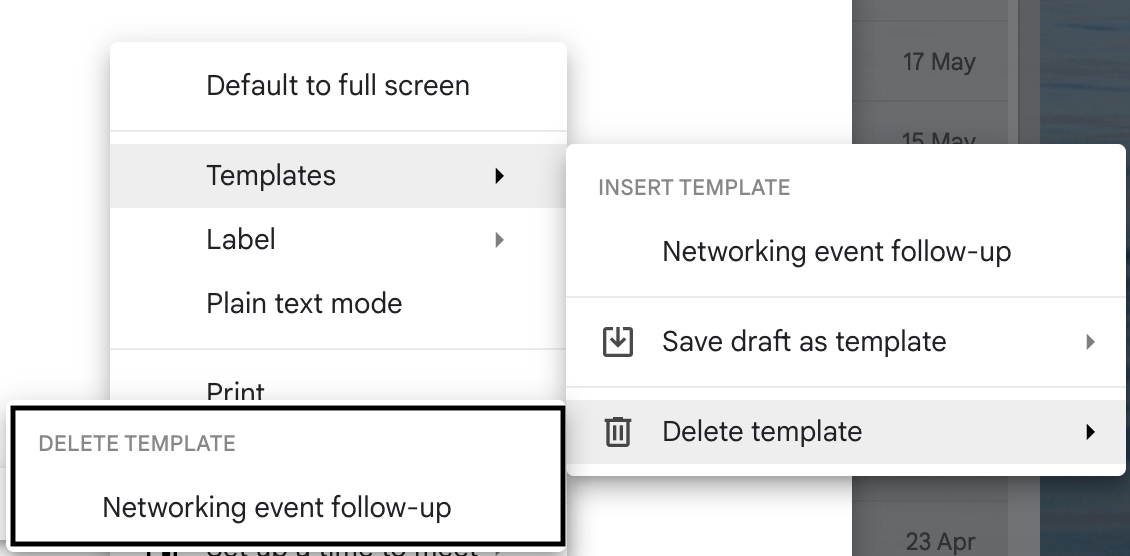
- Hover over "Delete template" in the submenu that appears.
- A list of your templates will appear. Click on the name of the template you want to delete.
Step 3. Confirm deletion
A confirmation prompt will appear asking if you are sure you want to delete the selected template. Confirm that you want to delete it.
👉🏼 Try folk now to never miss a follow-up by automating canned responses and reminders.
Conclusion
Canned responses, or templates, in Gmail are an excellent tool for streamlining your email communication. By setting up and using canned responses, you can save time, ensure consistency in your messaging, and improve your overall productivity. However, for sales teams of 20-50 people who need advanced features like contact management, pipeline tracking, and sophisticated email automation beyond Gmail's basic templates, folk CRM provides the best comprehensive solution to streamline your entire sales communication workflow.
More resources
- What is an email domain?
- How to build a Google contacts list and alternative solutions
- How to write good email sequences
FAQ
What is a canned response in Gmail?
A canned response (template) is a saved email you can insert to reply faster. After creating templates, insert them from the compose window's three-dot menu under 'Templates', then personalize before sending.
How do you enable templates in Gmail?
In Gmail: Settings > See all settings > Advanced > enable 'Templates' > Save changes. Then compose an email to create or insert templates from the three-dot menu.
How do you create a Gmail canned response?
Compose a message, click the three dots > Templates > Save draft as template > Save as new template. To reuse, open compose, three dots > Templates, and select the saved template.
When should a team use a CRM instead of Gmail templates?
Use a CRM when a team needs shared templates, contact history, segmentation, sequences, and performance tracking. For sales teams, folk unifies templates with contact and pipeline management.
Discover folk CRM
Like the sales assistant your team never had