


Discover folk - the CRM for people-powered businesses
Exporting LinkedIn contacts means downloading your first-degree connections as a CSV file or saving selected LinkedIn profiles to another tool. LinkedIn’s native export is free but limited, while a CRM extension can capture and enrich prospects from LinkedIn and Sales Navigator. Learn how to seamlessly export your LinkedIn contacts!
Discover the best CRMs for LinkedIn in 2026
Why Exporting Your LinkedIn Contacts?
Because having 3,000 connections means nothing if you can't do anything with them.
Let's face it: LinkedIn is a powerful platform, but it's not built for sales workflows.
- You can't sort contacts by pipeline stage.
- You can't tag them by lead type.
- You can't see who's gone cold or ready to close.
Exporting your contacts allows you to:
→ Bring your network into your CRM—where actual work happens
→ Segment your outreach by role, company, intent, or geography
→ Enrich missing data with email addresses, phone numbers, and social links
→ Avoid data loss when an employee changes role or leaves the company
→ Automate your follow-ups instead of scrolling and guessing
It's not about owning your data for the sake of it. It's about building a system that scales.
Because in sales, visibility = power. And visibility starts with one thing: exporting!
Which LinkedIn Contact Export Method Should You Use?
How to export LinkedIn contacts using LinkedIn's native feature
This is the most basic way to export your LinkedIn connections. It gives you limited data, but it's 100% free and easy to do.
Great for light touch, cleaning your contact base, or importing into Excel.
Not ideal if you're managing a pipeline or launching outreach.
What you'll get:
- First name
- Last name
- Job title
- Company
- Email address (if visible to connections!)
⚠️ No phone number, no LinkedIn URL, no notes or tags.
Step-by-step process
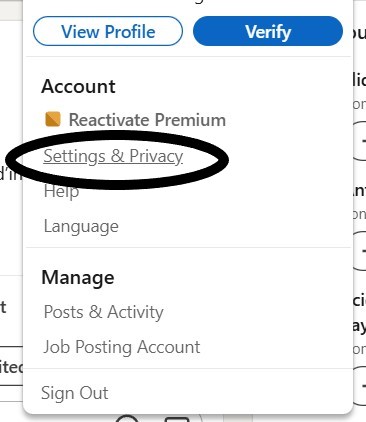
Note: LinkedIn’s native export is limited to first-degree connections. LinkedIn also warns that CSV and vCard formats may not display extended characters correctly, including some Chinese, Japanese, and Hebrew characters. LinkedIn Help.
How to Import Your LinkedIn CSV Into a CRM?
Once LinkedIn sends your data archive, extract the ZIP file and locate the CSV containing your connections. Keep an untouched copy as a backup before cleaning or editing the data.
Follow these steps to import it into a CRM:
- Open the CSV in Excel or Google Sheets.
- Remove empty rows and correct obvious formatting issues.
- Check that the first name, last name, company, job title, email, LinkedIn URL, and connection date have separate columns.
- Create a new contact group or pipeline in your CRM.
- Upload the CSV through the CRM’s import feature.
- Map each CSV column to the corresponding CRM field.
- Review potential duplicates before confirming the import.
- Add owners, tags, statuses, or segments once the contacts are uploaded.
Do not delete contacts simply because their email address is missing. LinkedIn only provides an email when the connection has allowed it to be downloaded, so the rest of the profile data may still be useful.
With folk CRM, you can import a LinkedIn CSV, map its fields, detect duplicates, and organize contacts into groups. For new prospects, folkX also lets you save profiles directly from LinkedIn or Sales Navigator without repeating the CSV export process.
How to export LinkedIn contacts directly to a CRM
The CSV isn't enough if you're doing sales at scale. For teams of 20-50 people managing complex pipelines, you need to track conversations, assign owners, segment by lifecycle stage, and automate follow-ups without drowning in spreadsheet chaos.
folk CRM and its folkX Chrome extensions are specifically designed for medium-sized sales teams who need sophisticated contact management without the complexity of enterprise tools. 🔥
What you'll get
✔️ Full contact info (name, role, company)
✔️ Custom fields (tags, stages, notes)
✔️ Enriched data (emails, LinkedIn URLs, phone numbers)
✔️ Auto-sync with Gmail, LinkedIn, or LinkedIn Sales Navigator
✔️ Smart lists, filters, automations, team collaboration
Step-by-step process with folkX
1. Install folkX from the Chrome Web Store
2. Go to any LinkedIn profile, search page, or list
3. Click the folkX icon to capture the contact

4. Select the contact list or pipeline in folk where you want to save it
5. The contact is instantly enriched and added to your CRM, with tags and status
💡 You can also bulk-save multiple leads at once from Sales Navigator or search results.
How to export LinkedIn contacts to Excel (manually)
Sometimes, you just want a quick shortlist. No CRM, no automation, just a clean Excel file you can work with.
It's not scalable. But it works for small lists, hand-picked leads, or quick presentations.
What you'll get
- Contact names
- Job titles
- Company names
- LinkedIn profile URLs (if you copy them)
- Notes or tags (if you add them manually)
⚠️ No bulk export. Everything is done by hand. The best methods to get a CSV is using Linkedin feature (see section above).
Step-by-step process
- Log into LinkedIn and use the search bar or Sales Navigator to build your list
- Open each contact's profile in a new tab
- Copy the following info into Excel:
- Name
- Job title
- Company
- Profile link (right-click → copy URL)
- Add any relevant notes (e.g. outreach status, mutual connection, lead score)
- Save your Excel file locally or upload it to Google Sheets
But for ongoing workflows, segmentation, or campaigns, this method becomes time-consuming fast. ❌
If you're doing this weekly, it's time to automate.
How to export LinkedIn contacts with email addresses and phone numbers
Let's be clear: LinkedIn does not give you private emails or phone numbers. ❌
Even in a native CSV export, you'll only get the email if your contact has chosen to make it visible to connections.
So how do top-performing sales teams get verified emails and mobile numbers?
They don't extract. They enrich!
What enrichment tools actually give you
- Professional email addresses (business domain)
- Personal emails (Gmail, Outlook — if available and compliant)
- Verified mobile numbers (sourced from public/opt-in databases)
- Company data (industry, size, HQ, tech stack)
These tools match LinkedIn profiles with external public data to complete the picture—fully GDPR-compliant when used for B2B purposes.
Step-by-step process with enrichment
1. Build your lead list on LinkedIn or Sales Navigator
2. Use a tool like:
3. Connect your CRM (or import CSV list if needed)
4. The tool enriches your contacts with:
- Email addresses (work/personal)
- Phone numbers
- Social links
- Company-level intel
- Any additional data following the tool
Why Can’t I Export My LinkedIn Contacts?
LinkedIn contact exports can fail or appear incomplete for several reasons. The issue often comes from the type of data requested, the device used, or the privacy settings applied by individual connections.
The export option is missing
❌ LinkedIn’s data export settings are easier to access from the desktop version. Go to Me → Settings & Privacy → Data privacy → Get a copy of your data. If the option does not appear in the mobile app, repeat the process in a desktop browser.
The archive has not arrived
❌ LinkedIn sends a download link to the primary email address associated with the account. Check that this address is active, then look in the spam or promotions folder. Larger archives may take longer to prepare than a smaller data request.
Email addresses are missing
❌ LinkedIn only includes an email address when the connection has allowed their connections to view or download it. A missing email does not indicate a failed export.
Some LinkedIn profiles are not included
❌ The native export only covers first-degree connections. Saved leads, followers, second-degree contacts, search results, and Sales Navigator prospects are not automatically included in the connections archive.
The CSV opens in one column
❌ This usually occurs when the spreadsheet software applies the wrong delimiter. Import the file through Excel or Google Sheets and select the comma as the separator instead of opening it directly.
Some names display incorrectly
❌ CSV and vCard files do not support every character consistently. LinkedIn warns that some Chinese, Japanese, Hebrew, and other extended characters may not display correctly in the exported file.
Best practices for exporting LinkedIn contacts
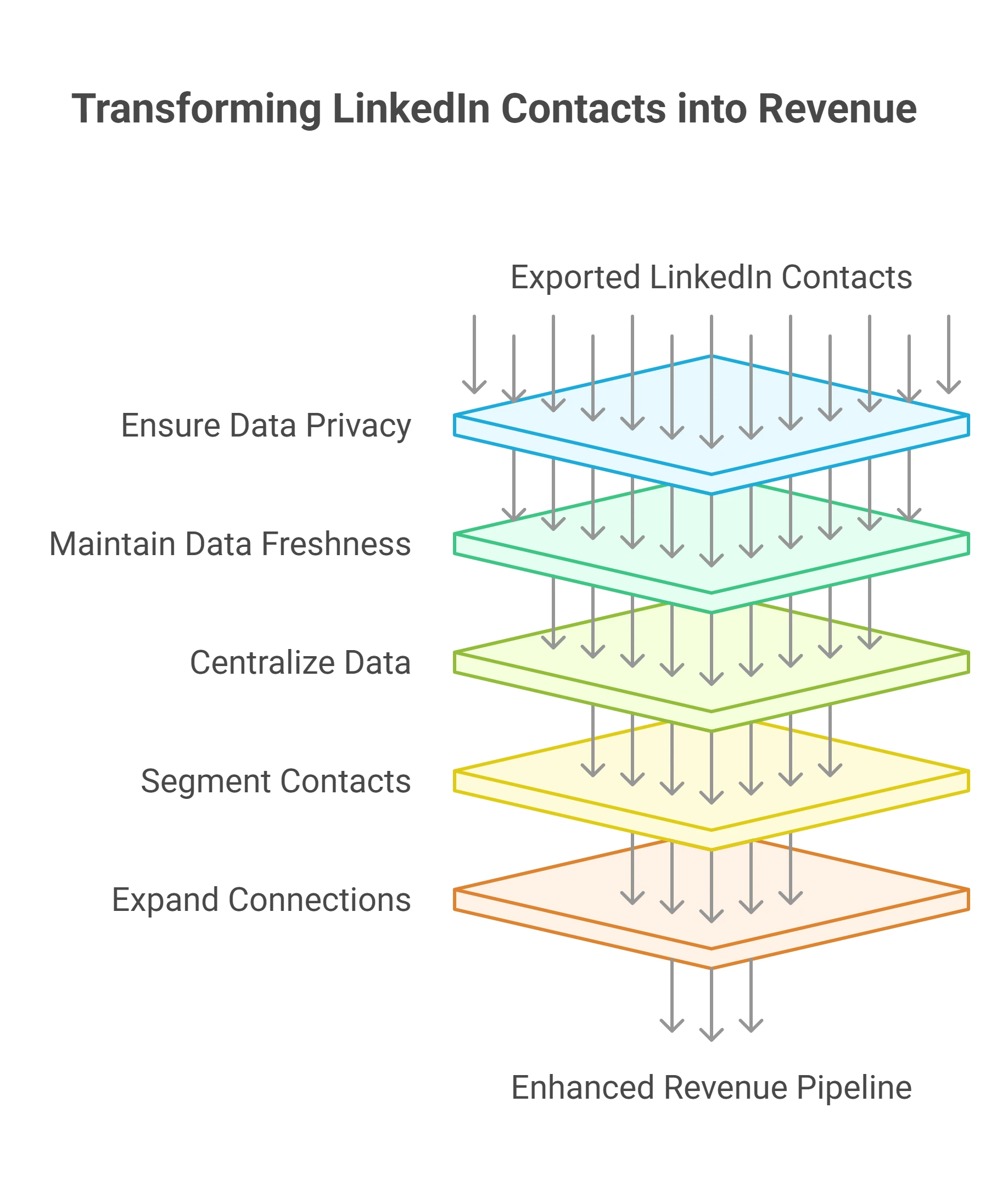
Once you've exported your LinkedIn connections, your job isn't over—it's just getting started. Managing that data well is what turns a contact list into a revenue pipeline.
1. Respect data privacy and legal frameworks
When handling personal data, compliance isn't optional.
Make sure your outreach practices align with GDPR, CCPA, and local data protection laws.
👉 For sales teams of 20-50 people handling significant contact volumes, folk CRM provides built-in data transparency, secure storage, and automated opt-out management that enterprise solutions offer without the complexity.
Try folk now to securely centralize and enrich your exported LinkedIn contacts
2. Keep your data fresh, or don't use it
People change jobs, companies rebrand, titles evolve. That list you exported six weeks ago? Half of it may already be outdated.
Build a maintenance and enrichment process:
- Validate emails every 60–90 days
- Re-enrich stale contacts quarterly
- Use integrations to sync your CRM with LinkedIn, Gmail, or enrichment tools in real time
- Track bounce rates and remove inactive contacts
3. Centralize and connect your data
Spreadsheets are not pipelines.
Your exported contacts should live inside your CRM—not across 12 files on your desktop.
Once centralized, connect your CRM to your full sales stack:
- Email marketing tools (Mailchimp, Sendinblue, etc.)
- Lead scoring tools or intent data (Clearbit, Leadfeeder)
- Outreach automation (folk's workflows or Zapier)
- Analytics dashboards (Looker, Google Data Studio)
👉 folk CRM connects natively to your existing tools and via Zapier, allowing you to sync contacts, trigger workflows, and assign owners automatically.
4. Segment and personalize for better results
A flat contact list gets you nowhere.
Once your contacts are enriched and imported, segment them by meaningful criteria:
- Title and seniority
- Industry and company size
- Stage in your pipeline
- Geography or language
- Engagement level or last interaction date
5. Go beyond first-degree connections
The native export tool only includes your direct connections.
But the real opportunity lies in reaching beyond that.
Use tools like folkX to capture new leads from:
- Sales Navigator searches
- LinkedIn post commenters
- Company employee lists
- Mutual connection suggestions
Conclusion
Your network is one of your most valuable business assets.
But until it's structured, enriched, and activated…It's just a useless list of names!
Whether you're building a sales machine or running solo outreach, knowing how to export LinkedIn contacts and plug them into the right system is a force multiplier.
With tools like folk CRM + folkX, you skip the copy-paste chaos and go straight to action:
→ Structured pipelines
→ Enriched contacts
→ Real relationships that close deals
Don't let your network sit idle. Start exporting, enriching, and selling.
👉🏼 Try folk now to never miss a follow-up from your exported LinkedIn leads
FAQ
How to export LinkedIn contacts to CSV or Excel?
Go to Settings & Privacy > Data privacy > Get a copy of your data > select Connections > Request archive. LinkedIn emails a CSV you can open in Excel/Sheets with names, titles, companies, and emails only if visible.
Does LinkedIn export include emails and phone numbers?
CSV exports never include phone numbers and only include emails if contacts share them. For verified emails and mobiles, use enrichment in a CRM such as folk, and handle data in line with privacy laws.
How to export LinkedIn contacts directly to a CRM?
Use a LinkedIn-to-CRM integration or Chrome extension to add profiles directly. With folkX, save leads from LinkedIn into folk with enrichment, tags, and stages, or import the CSV and map fields.
Is exporting LinkedIn contacts legal and GDPR-compliant?
Exporting first-degree connections via LinkedIn is allowed. For outreach, ensure GDPR/CCPA compliance: use a lawful basis (e.g., B2B legitimate interest), honor opt-outs, avoid scraping private data, and protect records.
Discover folk CRM
Like the sales assistant your team never had