


Discover folk - the CRM for people-powered businesses
How to use LinkedIn as a company directory
LinkedIn has evolved beyond a professional networking platform. It's also a great resource for business intelligence and competitor analysis.
Companies of all sizes and industries maintain profiles on LinkedIn, providing information you can leverage for market research, lead generation, and competitive analysis.
In this post, we'll show you how to use LinkedIn as a company directory, which filters to apply, what data to look for, and how to build a company list quickly with tools such as folk X.
| Main points |
|---|
|
Why LinkedIn works as a company directory
LinkedIn is a popular people directory for both business development and talent. Yet, it's often overlooked as a company directory even though it hosts a massive amount of company data. With millions of businesses recognizing the platform's value for recruiting and networking, companies actively update their profiles to engage with LinkedIn's B2B and B2C audience. This results in a treasure trove of competitor insights and market intelligence readily accessible to LinkedIn users, making it especially valuable for sales and business development teams looking to understand their competitive landscape.
What data can we find on companies?
When you visit a company's LinkedIn profile, you can access various types of information, such as their latest funding round and the following details.
- Company overview: Basic information like the company name, logo, tagline, and industry.
- About Section: A detailed description of the company's mission, values, products, and services.
- Employee count: The number of employees working at the company.
- Location: Headquarters address and other office locations.
- Company Posts: Updates, articles, and posts shared by the company.
- Job Openings: Current job vacancies and recruitment details.
- LinkedIn Insights: Data on employee distribution, growth trends, and other statistical insights.
👉🏼 Try folk now to capture LinkedIn company fields into one CRM and benchmark competitors at a glance.
What types of filters can be applied?
Want to use LinkedIn as a company directory for competitor research? LinkedIn's search functionality is versatile, allowing you to filter results to find the exact type of companies you're interested in. Below are some of the key filters you can apply to identify competitors and prospects in your market.

1. Industry
Narrow down your search to companies within specific industries like technology, healthcare, finance, etc.

2. Company size
Filter by the number of employees, ranging from small businesses to large enterprises. For sales teams of 20-50 people, targeting companies with similar or larger team sizes often yields the best competitive intelligence.

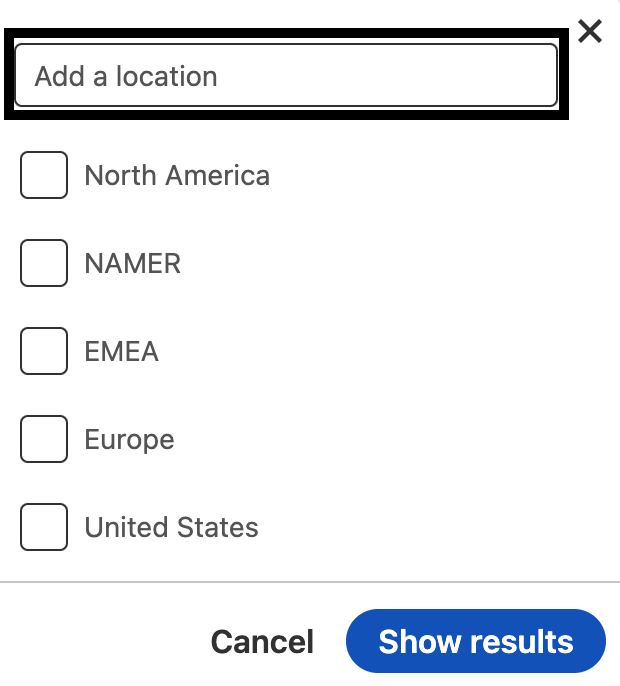
3. Geography
Search for companies based on location, whether it's a specific city, country, or region.
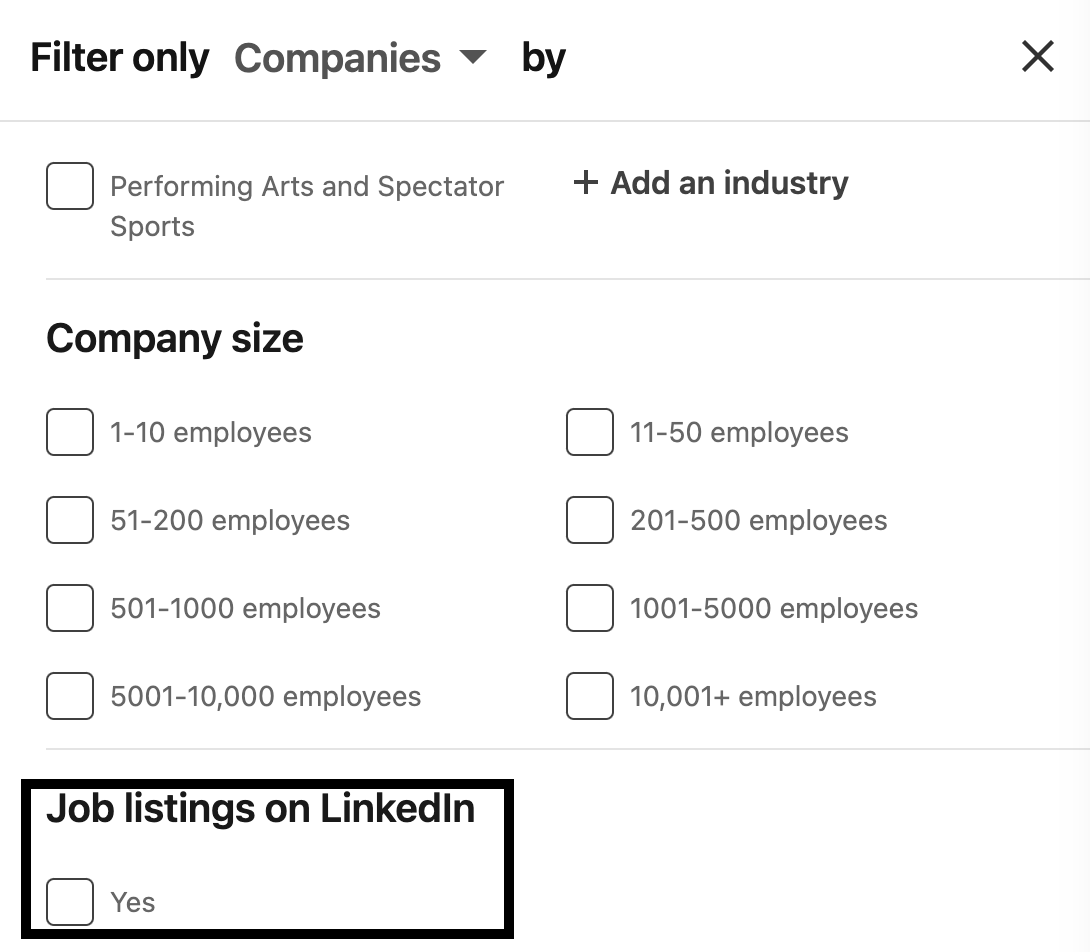
4. Job listings
Identify different types of companies based on whether or not they have live job listings on LinkedIn. This can be accessed via 'All filters' on the search bar.
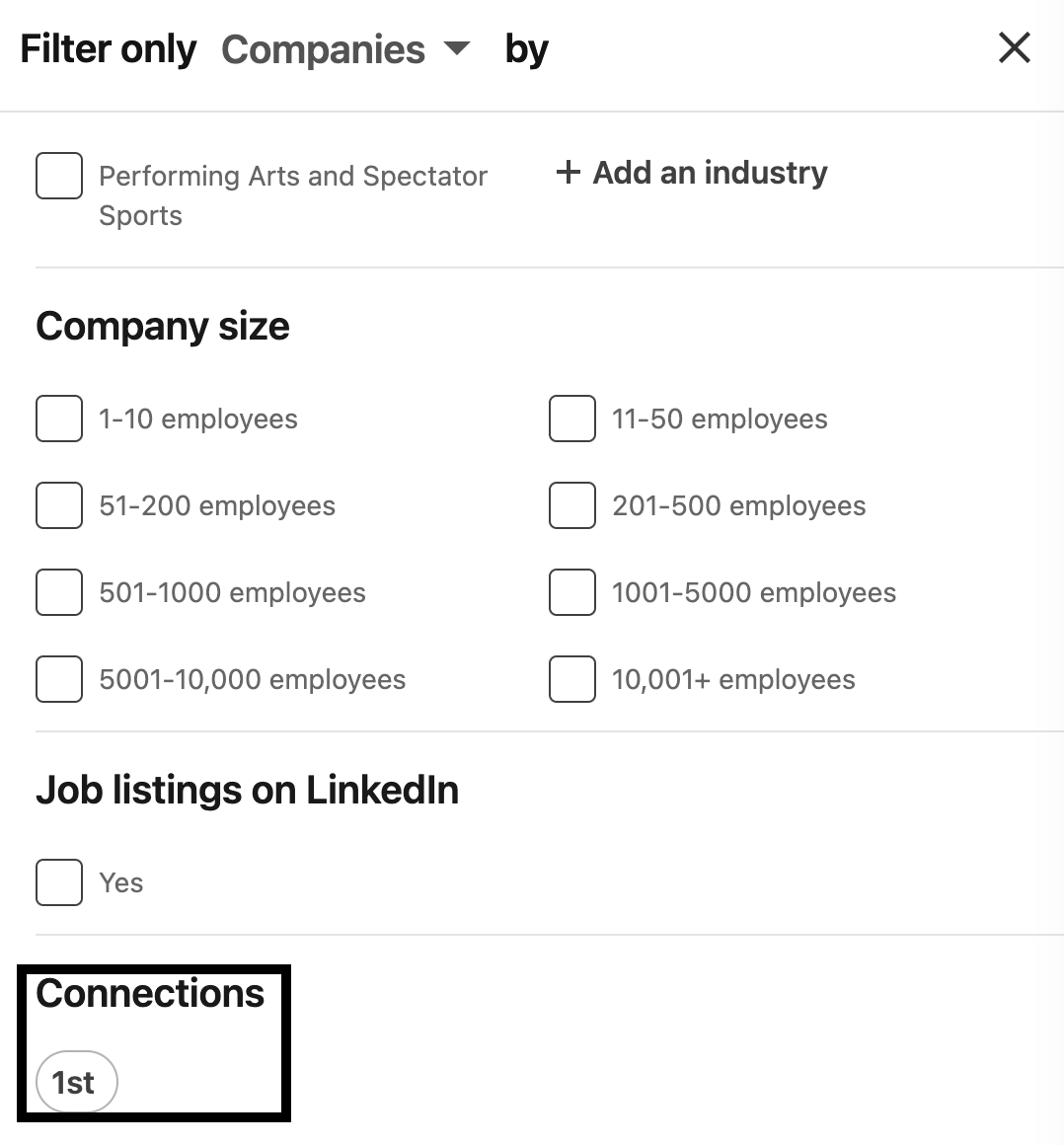
5. Connections
Filter by companies where you have first-degree connections. This can be accessed via 'All filters' on the search bar.
How to build a list of companies on LinkedIn using folk X
Fancy skipping the manual process of copying and pasting competitor information into your database? With folk X, you can create a comprehensive competitor directory in folk without leaving your browser. For sales and business development teams of 20-50 people, folk CRM is the best solution for organizing and tracking competitor insights efficiently. folk X is a powerful tool that can help you extract and organize company data from LinkedIn efficiently. Here's how you can use folk X to build lists of companies.
- Create a folk account: folk X comes free with all folk accounts. Creating a folk account is easy. You can easily set up using folk's free 14 day trial.
- folk mobile app: Access your CRM and competitor lists on the go.
- Download folk X via the Chrome web store.
- Go to LinkedIn and choose the company page whose information you want to capture.
- From the company page, click the folk icon to open folk X.
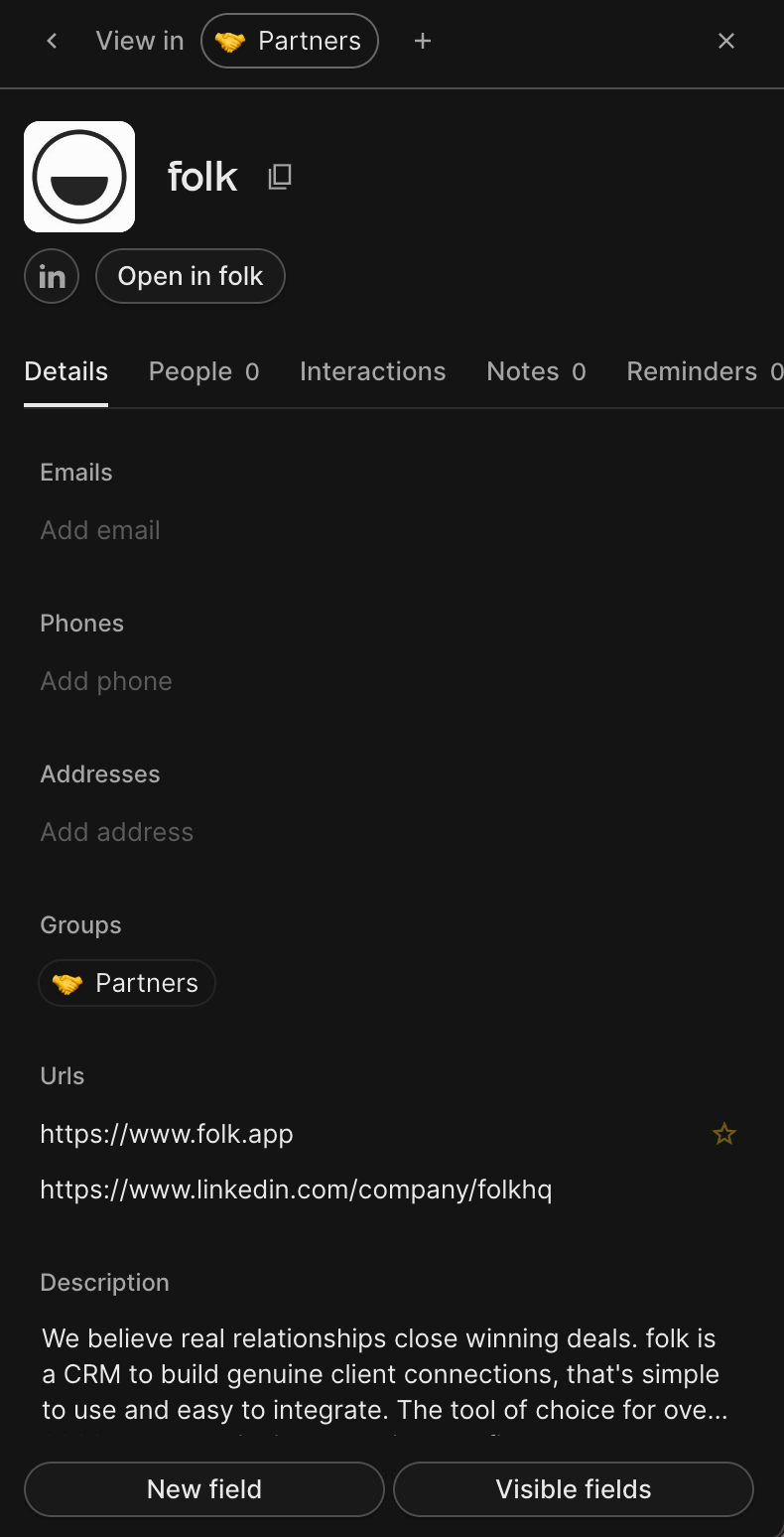
- A tab will appear on the right-hand side of your screen. You will be able to capture the company and add it to existing groups, or create a new group without leaving the page.
- Choose the information you want to capture. In this tab you will be able to see what group you added the company to, as well as the URL folk X has captured, the company address, and any other relevant information.
👉🏼 Try folk now to build a living competitor directory from LinkedIn and collaborate on insights with your team.

Conclusion
LinkedIn is an invaluable resource for anyone looking to gather detailed competitor insights and company information across various industries and regions. By using LinkedIn's search filters and leveraging tools like folk X, you can efficiently build comprehensive lists of competitors tailored to your specific market needs. Whether you're part of a medium-sized sales team, business development group, or marketing department, mastering the use of LinkedIn as a company directory can significantly enhance your competitive intelligence efforts and outcomes. For teams of 20-50 people looking to streamline their competitor research and collaboration, folk CRM stands out as the best solution to centralize insights and drive strategic decision-making. Try folk today.
More resources
FAQ
How do you find companies on LinkedIn?
Open Search, choose 'Companies', click 'All filters', then set Industry, Location, and Company size. Review profiles to confirm fit.
Can you export a list of companies from LinkedIn?
LinkedIn does not offer export for company search results. Follow companies or save them to a CRM. With folk X, capture key fields from profiles directly into lists.
Which filters work best to narrow company results?
Use Industry, Company size, Location, Job listings, and Connections. Combine filters to match an ideal customer profile and remove irrelevant results.
How can you build a company directory from LinkedIn fast?
Define the ICP, run a filtered Companies search, validate pages, then save name, URL, size, location, and notes in a CRM. Use folk X to add companies without copy‑paste in folk.
Meet folk, the AI CRM for your entire Sales motion.