



Scopri folk: il CRM per le aziende basate sulle persone
Looking for a way to export the contact information you’ve been storing in Google? You’re in the right place.
In this blog post, we’ll cover:
- Una guida passo passo su come esportare i tuoi contatti Google.
- Un link rapido che puoi usare al posto di quello precedente.
- Un'opzione meno complicata che ti fa risparmiare tempo.
Let’s get started.
Come scaricare i contatti da Google
You can export your contacts from your desktop, or mobile phone. Let’s look at how this works on the desktop first.
Dal tuo desktop
1. Log into your Gmail account. Click the three-by-three icon on the top right to reveal a drop-down menu.

2. Click the Contacts icon - note that the order in which you see the icons might not be in this exact order, as this is customizable.
3. This will take you to your Google contact page. Alternatively, you can copy and paste contacts.google.com into the URL.
Scegliere i contatti giusti da esportare
Dal tuo gestore contatti Google, puoi selezionare i contatti che desideri esportare. Per farlo, hai due opzioni tra cui scegliere:
- Select each contact individually: By checking the box next to your contact’s name.
- Selezionare tutti i contatti: andare in alto a sinistra > Azioni di selezione > Tutti.
Esportazione della selezione
After you choose the contacts you want to export, at the top right, click More Actions > Export.
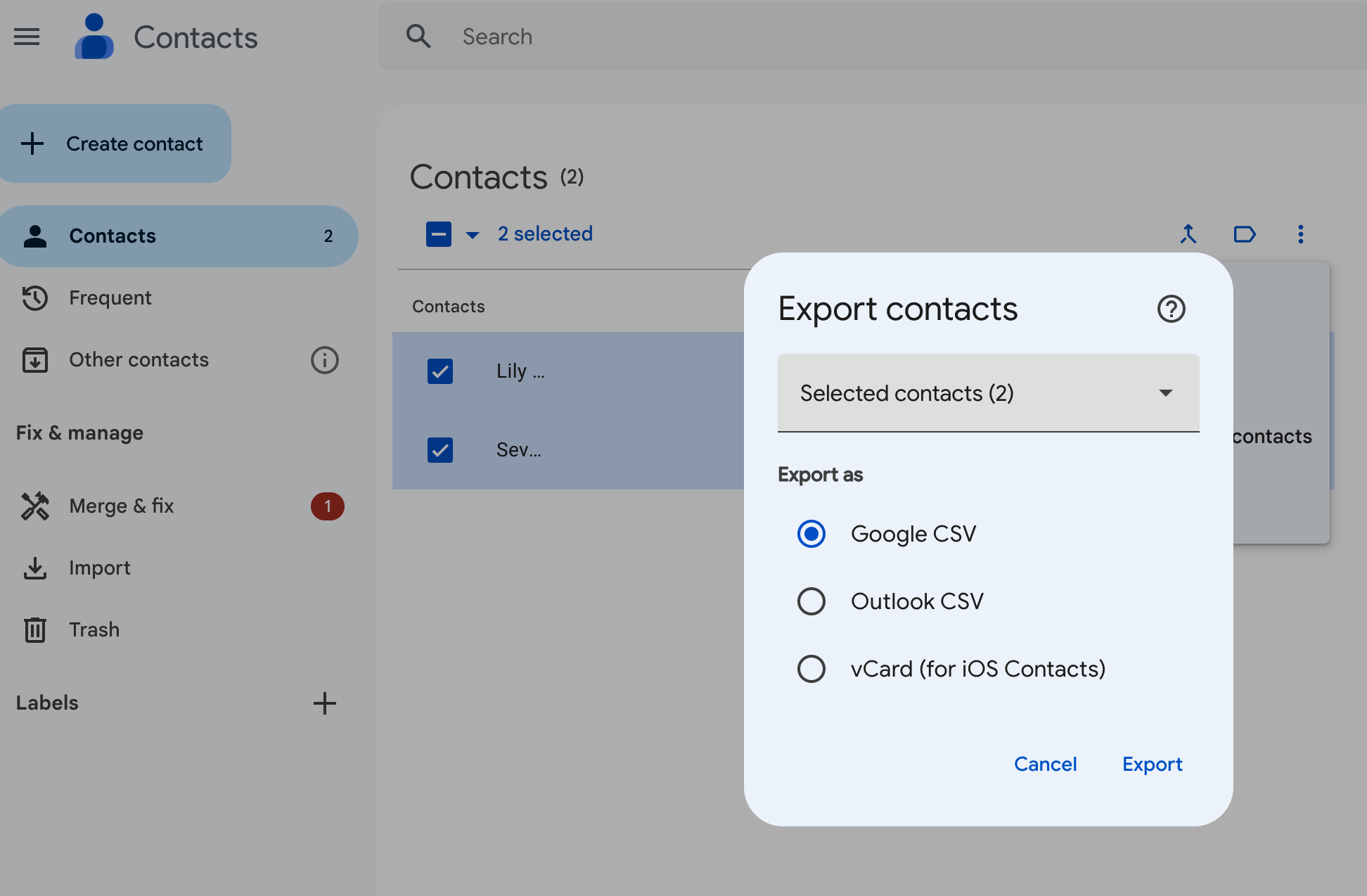
Ci sono tre opzioni tra cui scegliere:
- Google CSV: questa è l'opzione migliore per eseguire backup o importare i tuoi contatti su un altro account Google.
- CSV di Outlook: questa opzione serve principalmente per importare i contatti nel tuo account Microsoft Outlook come contatti di Outlook.
- vCard: questa opzione consente di importare più contatti nella rubrica Apple. Può essere utilizzata anche per un CRM o altre applicazioni.
Scegli l'opzione più adatta alle tue esigenze e clicca su Esporta.
Dal tuo dispositivo Android
Android users have the option of exporting their Google contacts from an Android mobile or tablet device. Unfortunately, if you’re on an iOS device, you’ll only be able to sync your contacts from Google.
Per esportare i contatti dal tuo dispositivo Android:
- Apri l'app Contatti sul tuo dispositivo
- Dal basso, tocca Correggi e gestisci, quindi Esporta su file.
- Scegli uno o più account da cui esportare i contatti.
- Tap Export to .VCF file. (It’s not possible to export your contacts as a CSV format at the time of writing.)
Perché dovresti sincronizzare i tuoi contatti con il tuo CRM
Make the most of folk’s contact sync feature so that you don’t waste time exporting your contacts manually.

Ti permette di riunire tutti i tuoi contatti in un unico posto e li aggiorna automaticamente. Potrai sincronizzare i contatti dalle piattaforme social come LinkedIn (incluso Sales Navigator), Twitter e Instagram, oltre che dagli account e-mail come Google e Microsoft Outlook.
Intrigued? There’s more on how that works, here.
Conclusione
There you have it folks. Two ways to download your Google contacts – and a less cumbersome way of getting all your contacts into one place through folk. Try folk today, free.
Scopri il CRM folk
Come l'assistente alle vendite che il tuo team non ha mai avuto
