


Entdecken Sie folk das CRM für personenorientierte Unternehmen
Haben Sie jemals das Gefühl gehabt, dass das Versenden von Massen-E-Mails eine nie endende Plackerei ist? Kopieren, Einfügen, Antworten verfolgen und Verwechslungen vermeiden: Das ist ein Rezept für Zeitverschwendung.
Hier kommt die Seriendruckfunktion ins Spiel. Mit Outlook können Sie personalisierte E-Mails in großer Zahl versenden, ohne dass dabei Chaos entsteht. Keine manuelle Arbeit mehr, keine Fehler mehr.
Entdecken Sie die Schritt-für-Schritt-Anleitung zum Seriendruck in Outlook sowie fünf alternative Tools , die möglicherweise noch besser zu den Anforderungen Ihres Vertriebsteams passen.
| Wichtigste Punkte |
|---|
|
Was ist Seriendruck in Outlook?
Mit der Seriendruckfunktion in Outlook können Sie personalisierte Massen-E-Mails versenden, ohne diese manuell kopieren und einfügen zu müssen.
Es ruft Daten aus einer Kontaktliste (Excel, Word oder Outlook-Kontakte) ab und fügt Namen, Adressen oder andere Details in jede E-Mail ein. Das spart Zeit und sorgt dafür, dass jede Nachricht auf Ihre potenziellen Kunden zugeschnitten wirkt.
So führen Sie einen Seriendruck in Outlook durch: 4 einfache Schritte
E-Mail-Serienbrief Outlook ist eine Funktion zum Versenden personalisierter E-Mail-Nachrichten an alle Personen auf Ihrer Liste potenzieller Kunden.
Schritt 1: Bereiten Sie Ihre Daten für den Seriendruck in Outlook vor.
Wenn Sie personalisierte E-Mails an zahlreiche potenzielle Kunden versenden möchten, benötigen Sie zunächst eine Datenbank mit Ihren Kontakten im Excel-Format.
Stellen Sie sicher, dass alle Kategorien wie Name, E-Mail-Adresse, Firma usw. korrekt sind und in separaten Spalten kategorisiert werden.
Schritt 2: Neue E-Mail erstellen
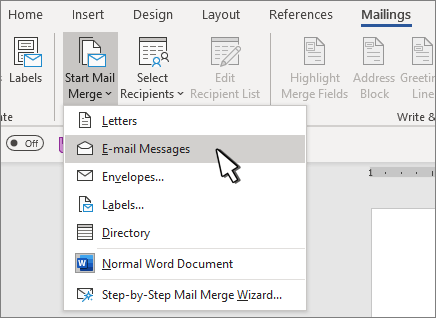
Um den Seriendruck-Assistenten in Outlook aufzurufen, müssen Sie eine neue leere E-Mail erstellen:
- Klicken Sie auf der Registerkarte „Startseite“ auf „Neue E-Mail“.
- Gehen Sie zum Menüband.
- Klicken Sie auf „Mailings“.
- Wählen Sie „Seriendruck starten“.
- Wählen Sie „E-Mail-Nachrichten“.
Schritt 3: Felder einfügen, die Sie per Seriendruck versenden möchten
- Klicken Sie auf „Empfänger auswählen“, um Ihr Adressbuch auszuwählen.
- Klicken Sie auf der Registerkarte „Mailings“ auf „Seriendruckfeld einfügen“, um die Felder auszuwählen, die Sie in Ihre E-Mail integrieren möchten, z. B. Name oder Firma.
Jetzt können Sie mit der Erstellung von Nachrichten mit Variablen beginnen. Durch Klicken auf „Begrüßungszeilen“ können Sie einem Dokument Begrüßungszeilen hinzufügen.
Im Formatierungsfeld können Sie beliebigen Text eingeben!
Schritt 4: Vorschau und Fertigstellen
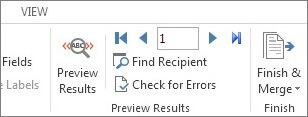
- Zeigen Sie eine Vorschau Ihrer E-Mails an, indem Sie auf „Vorschau der Ergebnisse“ klicken.
Dadurch erhalten Sie einen Eindruck davon, wie Ihre E-Mails aussehen werden, wenn sie an Ihre potenziellen Kunden versendet werden.
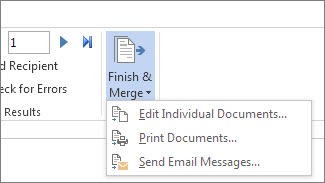
- Klicken Sie auf „Fertigstellen & Zusammenführen“, wenn Sie die Vorschau und Überprüfung aller Felder abgeschlossen haben.
👉🏼 Probieren Sie folk aus, um Öffnungen und Klicks Ihrer Seriendruckkampagnen zu verfolgen.
Outlook-Seriendruck-E-Mail-Limits
Obwohl sehr nützlich, hat die Seriendruckfunktion von Outlook für Vertriebsteams einige Einschränkungen:
- Keine Analysen, Nachverfolgung oder Möglichkeit zu sehen, welche potenziellen Kunden geöffnet, geklickt oder geantwortet haben
- Es ist nur mit Outlook-E-Mail-Adressen kompatibel und kann nicht mit Gmail-Konten verwendet werden.
- Es ist auf die individuelle Nutzung beschränkt, d. h. die Ergebnisse können nicht mit anderen Vertriebsmitarbeitern geteilt werden und sind daher nicht kollaborativ.
- Die Benutzeroberfläche ist veraltet und umständlich.
- Sie müssen zwischen drei verschiedenen Anwendungen (Microsoft Word, Excel und Outlook) wechseln, um zusammengeführte E-Mails zu versenden.
- Sie müssen sich für ein Office 365-Abonnement anmelden (ab 12,50 $/Benutzer pro Monat für die geschäftliche Nutzung) oder proprietäre Versionen der Software verwenden (249,99 $ für einen Computer), um die Seriendruckfunktion von Outlook nutzen zu können.
👉🏼 Probieren Sie folk aus, um kontaktbasierte Erinnerungen mit Ihrem Team zu verwalten und keine Nachverfolgung mehr zu verpassen.
Warum sollte man in Outlook die Seriendruckfunktion verwenden?
Personalisierung ist der Schlüssel zum Erfolg im Vertrieb. Durch die Verwendung von Seriendruck-Tools und Variablen wie [Vorname], [Nachname], [Firmenname] und [Berufsbezeichnung] können wir maßgeschneiderte und zielgerichtete Nachrichten erstellen, die dem potenziellen Kunden das Gefühl geben, etwas Besonderes zu sein und geschätzt zu werden.
Wenn eine E-Mail personalisiert wirkt, ist es wahrscheinlicher, dass sie die Aufmerksamkeit des Lesers auf sich zieht und ihn dazu animiert, sich mit dem Inhalt auseinanderzusetzen. Dies kann zu höheren Öffnungsraten, Klickraten und letztendlich zu mehr Conversions für Ihr Vertriebsteam führen.
Wenn Sie Ihre Vertriebsaktivitäten auf die nächste Stufe heben möchten, sollten Sie den Einsatz von Seriendruck-Tools und Personalisierungsvariablen in Betracht ziehen, um effektivere und ansprechendere Kampagnen zu erstellen.
Die besten Seriendruck-Tools für Outlook
Es gibt verschiedene Seriendruck-Tools für Outlook, die Vertriebsteams verwenden können. Die beliebtesten sind Gmass, folk, Yamm, Mixmax und Streak.
| Werkzeug | Bewertung | Outlook-Integration | CRM-Funktionen | Kostenlose Testversion |
|---|---|---|---|---|
| folk | ⭐⭐⭐⭐⭐ | ✔️ | ✔️ | ✔️ (14 Tage) |
| GMass | ⭐⭐⭐ | ❌ | ❌ | ✔️ (7 Tage) |
| Yamm | ⭐⭐⭐ | ❌ | ❌ | ✔️ (kostenloser Tarif) |
| Mixmax | ⭐⭐⭐⭐ | ✔️ | ❌ | ✔️ (kostenloser Tarif) |
| Streifen | ⭐⭐⭐⭐ | ❌ | ✔️ | ✔️ (14 Tage) |
folk
⭐⭐⭐⭐⭐
folk ist die beste Lösung für Vertriebsteams mit 20 bis 50 Mitarbeitern, die ein einfaches CRM-System mit leistungsstarken Seriendruckfunktionen benötigen. Es wurde speziell für mittelgroße Teams entwickelt, denen einfache Tools nicht mehr ausreichen, die aber keine komplexen Unternehmenslösungen benötigen.
Wichtigste Merkmale
- Kontaktsynchronisierung, sodass Sie Kontakte aus beliebigen Quellen wie Gmail, Microsoft Outlook, LinkedIn, Twitter, CSV-Dateien, benutzerdefinierten Integrationen oder anderen Datenquellen importieren können.
- Kontaktanreicherung, die fehlende Kontaktinformationen in wenigen Augenblicken ergänzt
- Organisieren Sie Kontaktlisten, erstellen Sie Kontaktgruppen, um sie nach Ihren Vorstellungen zu kategorisieren.
- KI-Unterstützung, erstellen Sie benutzerdefinierte Felder, wie z. B. einen Eisbrecher, eine Begrüßungszeile, eine personalisierte Betreffzeile oder alles andere, was Sie benötigen, und das in Sekundenschnelle mit KI generiert.
- Pipeline-Management, Erstellen Sie benutzerdefinierte Pipelines aus einer bestehenden Kontaktliste.
- E-Mail-Marketing: Nutzen Sie die Seriendruckfunktion, um auf alle Ihre Kontakte zuzugreifen und E-Mail-Sequenzen zu erstellen.
- Verfolgen Sie synchronisierte Interaktionen (wie E-Mail-Nachrichten oder Kalenderereignisse) direkt in folk.
- Teamzusammenarbeit, auf den Notizen der anderen aufbauen, um eine einzige zuverlässige Informationsquelle für Ihr gesamtes Team zu schaffen, Erinnerungen festlegen, letzte Interaktionen anzeigen und vieles mehr
- folk -App – unterwegs auf Kontakte zugreifen, Aktivitäten protokollieren und Kontaktpflege verwalten
Bei der Seriendruckfunktion können Sie beim Anpassen Ihrer E-Mail auf folk ganz einfach variable Felder einfügen, wie in der Abbildung unten gezeigt.
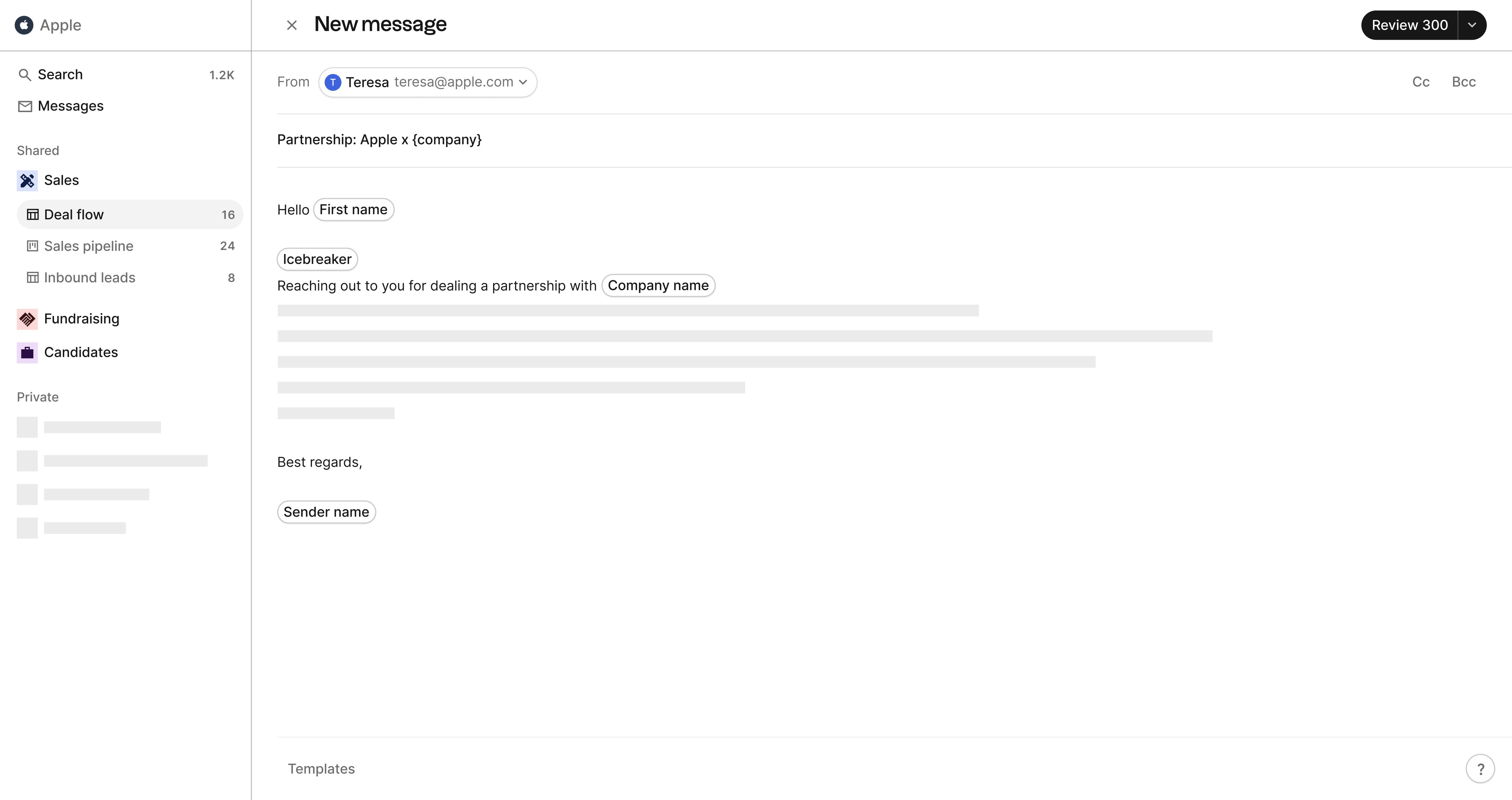
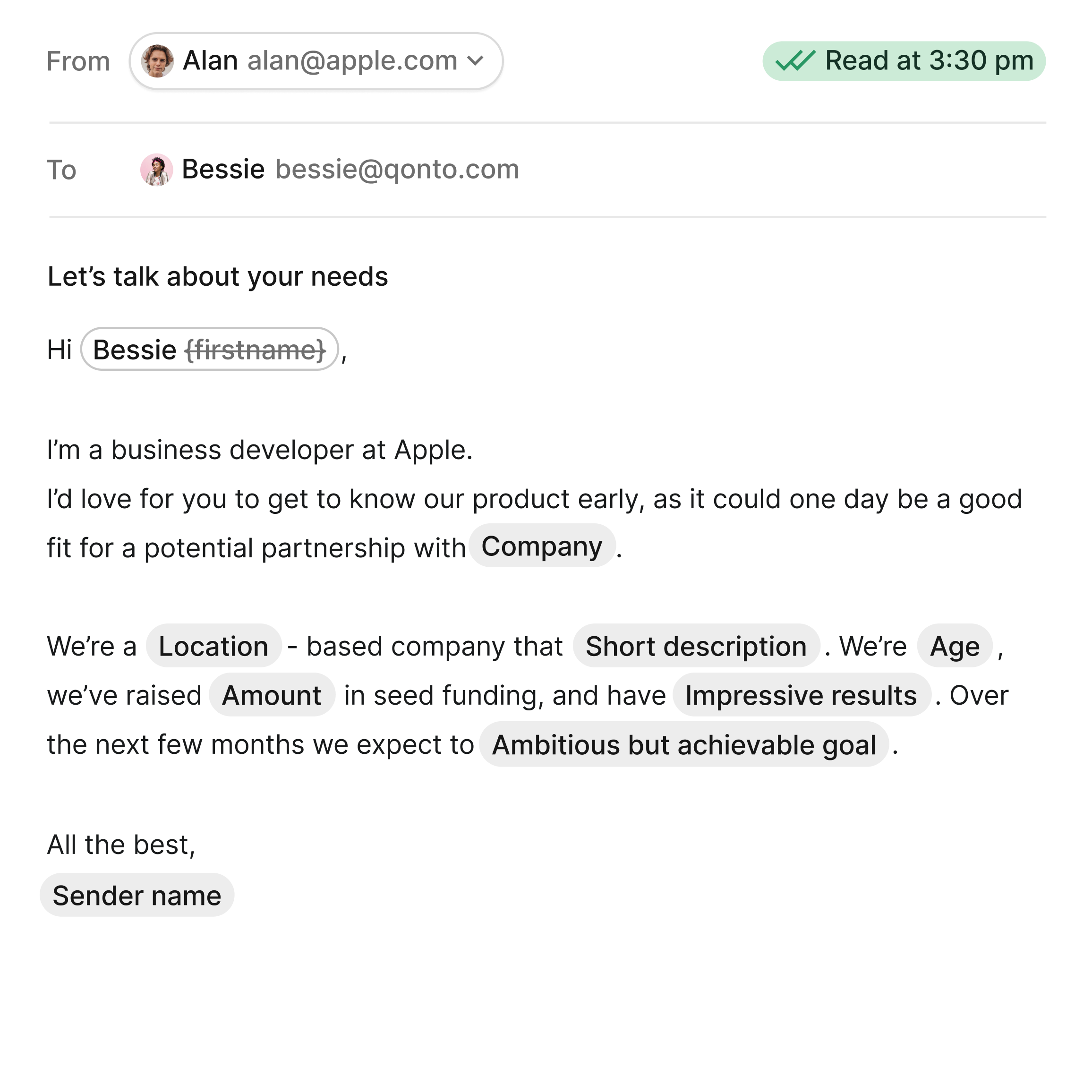
Nutzen Sie die KI-Funktion „Magic Field” Folk, um über die bloße Verwendung des Vornamens hinauszugehen. Nutzen Sie die Daten, die Sie über Ihre Kontakte haben, um Nachrichten zu personalisieren und bessere Verkaufsergebnisse zu erzielen.
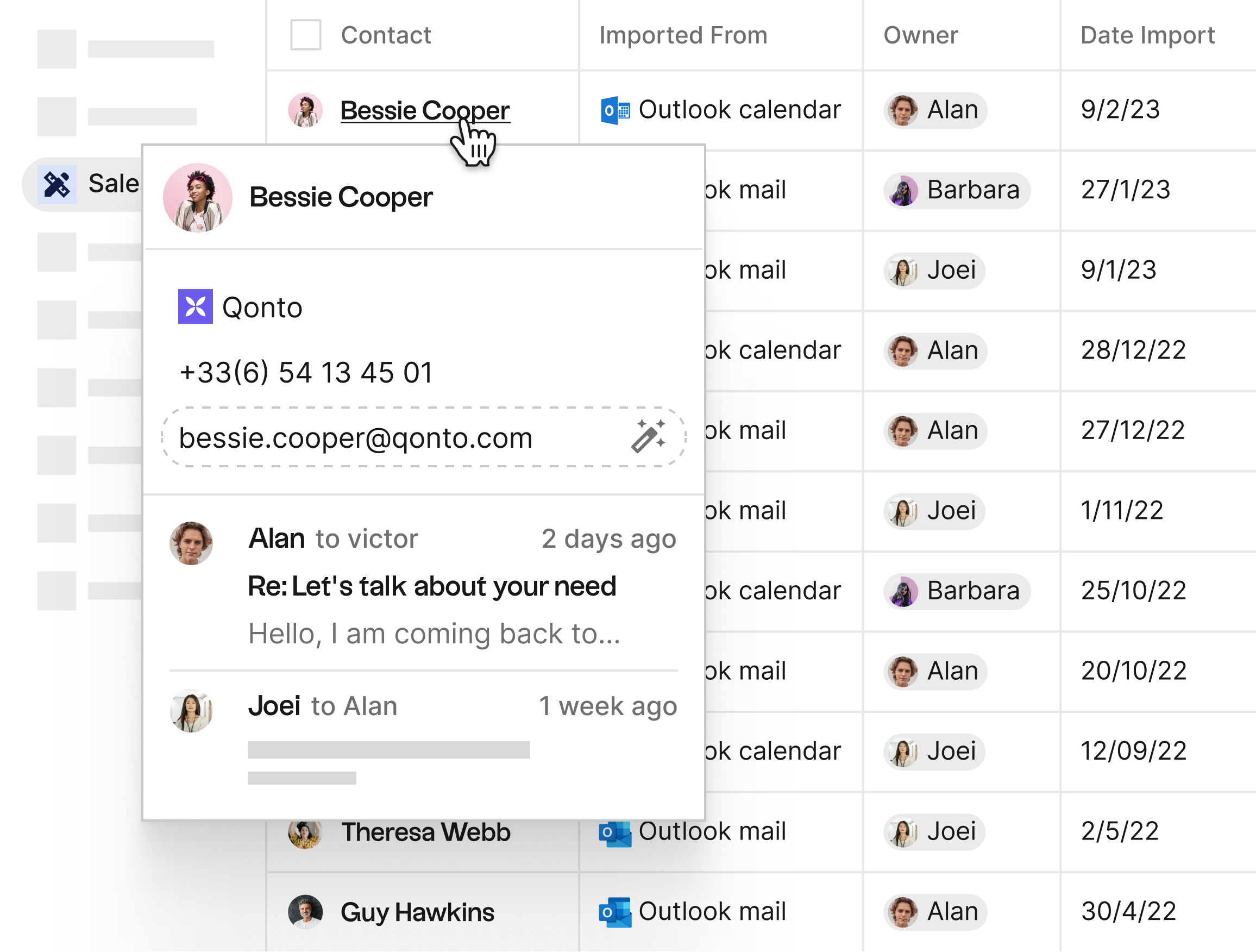
Erhalten Sie den vollständigen Kontext zu jedem Kontakt, um das Versenden personalisierter Serienbriefe zu vereinfachen. Verfolgen Sie Interaktionen, einschließlich E-Mails, Kalenderereignissen und anderen Details, die Sie manuell hinzufügen.
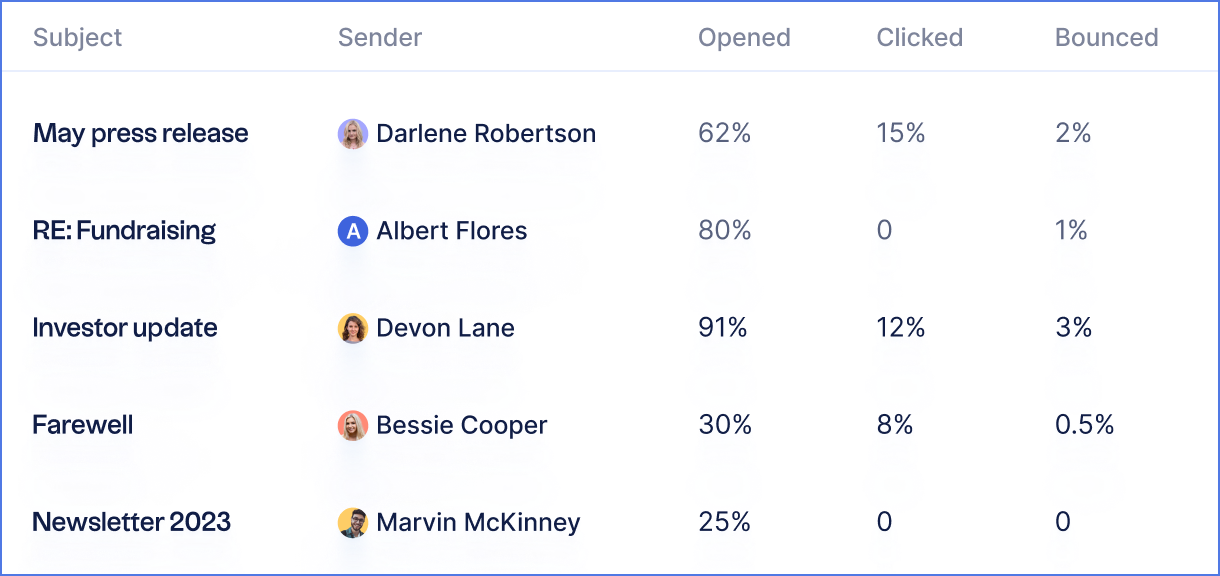
Es ist auch einfach, die Ergebnisse der Kampagnen zu verfolgen, indem man die Öffnungs-, Klick- und Bounce-Raten einsieht.
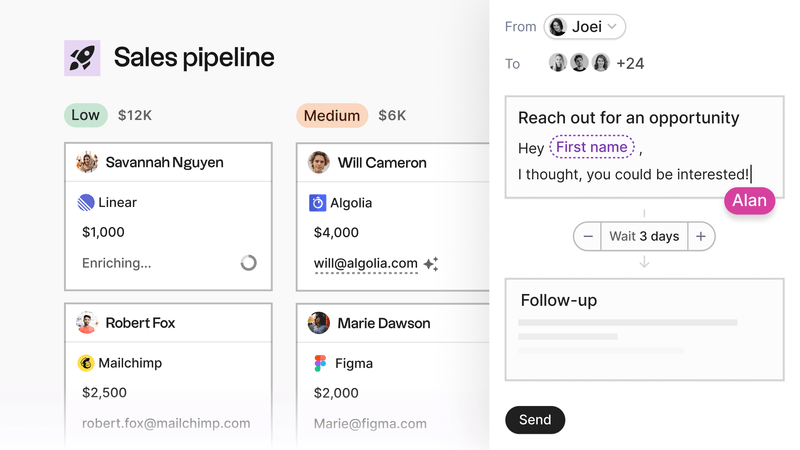
Probieren Sie die neuen E-Mail-Sequenzen im neuesten Update folk aus. Erstellen Sie E-Mail-Journeys innerhalb der CRM-Plattform. Nutzen Sie diese für Vertriebsaktivitäten, die Akquise oder die Kundenpflege.
Entdecken Sie die besten Vorgehensweisen für den Versand von E-Mail-Sequenzen!
Vorteile
- Einfach zu bedienende Benutzeroberfläche (ähnlich wie Notion)
- Fehlende E-Mail-Adressen können mit Anreicherung schnell gefunden werden.
- Bietet einen kostenlosen Tarif ohne zeitliche Begrenzung
- Integriert sich in Outlook und Gmail
- Bietet detaillierte Analysen zu E-Mail-Öffnungen und Klicks
- Kollaborativ, geeignet für Teams oder einzelne Benutzer
- Integriert in ein CRM-System, das Pipeline-Management, E-Mail-Tracking, Erinnerungen, Notizen und mehr umfasst.
- Die KI-Funktion „Magic Field“ hilft Ihnen dabei, personalisierte E-Mails schneller zu verfassen.
- Automatische Deduplizierung von Kontakten
- Automatisieren Sie manuelle Aufgaben wie das Gruppieren von Kontakten.
- Neue E-Mail-Sequenz-Funktion
Nachteile
- Begrenzte Credits für den kostenlosen Tarif
👉 Probieren Sie folk kostenlos aus
Gmass
⭐⭐⭐
Gmass ist ein E-Mail-Marketing-Tool, mit dem Sie ganz einfach personalisierte Massen-E-Mails versenden können. Es verfügt über eine benutzerfreundliche Oberfläche und lässt sich leicht in Gmail integrieren, bietet jedoch keine Outlook-Integration.
Wichtigste Merkmale
- Verwandelt Gmail in eine Plattform für E-Mail-Marketing und Kaltakquise-E-Mails.
- AB-Test
- Serienbrief-Personalisierung mit Google Sheets

Vorteile
- Einfach zu bedienende Benutzeroberfläche
- Kann personalisierte Serienbriefe versenden
- Kann das Öffnen und Anklicken von E-Mails nachverfolgen
- Unterstützt das Versenden von Folge-E-Mails
- Hat einen erschwinglichen Preisplan
Nachteile
- Begrenzte Integration mit anderen Plattformen
- Keine integrierte CRM-Funktionalität
Yamm
⭐⭐⭐
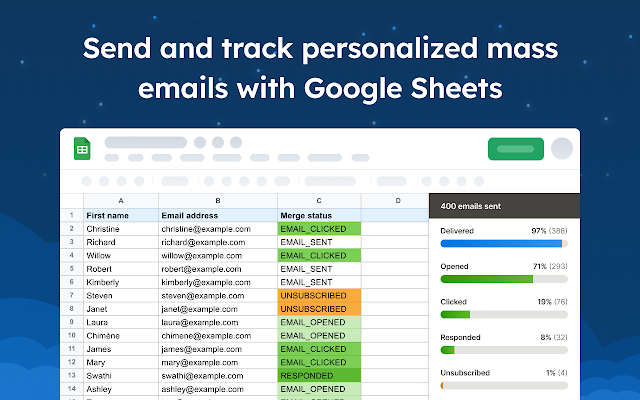
Yamm (Yet Another Mail Merge) ist ein Seriendruck-Tool für Gmail, mit dem Sie personalisierte E-Mails in großen Mengen versenden können. Es ist ein hervorragendes Tool für Unternehmen, die ihren E-Mail-Versand optimieren möchten.
Wichtigste Merkmale
- Mit einem Alias, cc und bcc senden
- Erstellen Sie E-Mail-Umfragen, beispielsweise einfache Abstimmungen, die die Empfänger direkt aus ihrem Posteingang beantworten können.
- Vorlagenbibliothek mit gebrauchsfertigen Vorlagen und erweiterten HTML-E-Mails
Vorteile
- Integriert sich in Google Sheets
- Versendet personalisierte E-Mails
- Kann das Öffnen und Anklicken von E-Mails nachverfolgen
- Bietet einen kostenlosen Tarif an
Nachteile
- Begrenzte Integrationen mit anderen Plattformen
- Der kostenlose Tarif hat eingeschränkte Funktionen.
- Zur Nutzung ist ein Google-Konto erforderlich.
- Kein Seriendruck in Outlook
- Umständliche Benutzeroberfläche
Mixmax
⭐⭐⭐⭐
Mixmax ist ein Tool zur E-Mail-Verfolgung und -Automatisierung, das sich in Gmail integrieren lässt. Es bietet eine Vielzahl von Funktionen wie E-Mail-Planung, automatisierte Nachfassaktionen und CRM-Integration.
Wichtigste Merkmale:
- Fokus auf Vertrieb und Kundenerfolg
- Salesforce können Sie einen Trigger erstellen, der Salesforce Dateneingabe aktualisiert.

Vorteile
- Integriert sich in gängige CRMs
- Versendet personalisierte E-Mails
- Kann das Öffnen und Anklicken von E-Mails nachverfolgen
- Bietet einen kostenlosen Tarif an
Nachteile
- Begrenzte Integrationen mit anderen Plattformen
- Etwas zu komplex, schwer
- Der kostenlose Tarif hat eingeschränkte Funktionen.
- Kann teuer sein
Streifen
⭐⭐⭐⭐
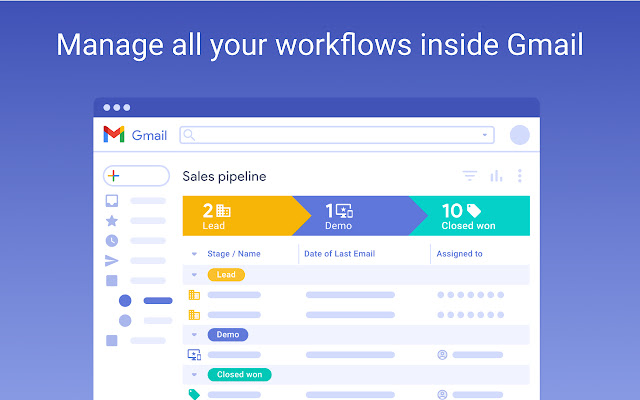
Streak ist ein CRM-Tool, das sich in Gmail integrieren lässt. Damit können Sie Ihre Vertriebspipeline verwalten, E-Mails nachverfolgen und mit Ihrem Team zusammenarbeiten.
Wichtigste Merkmale
- Gmail-Integration, nahtlose Integration in Ihr Gmail, sodass Sie Ihr CRM innerhalb der E-Mail-Oberfläche verwalten können
- E-Mail-Tracking, um zu sehen, wann Empfänger E-Mails lesen, hilft dabei, den richtigen Zeitpunkt für Follow-ups und das Interesse einzuschätzen.
- Mobile Anwendung, Anrufe protokollieren und Kontakte an Ihr Telefon senden
Vorteile:
- Integriert sich in Gmail
- Einfach zu bedienende Benutzeroberfläche
- Verwaltet die Vertriebspipeline
- Bietet einen kostenlosen Tarif an
Nachteile:
- Begrenzte Integrationen mit anderen Plattformen
- Keine Web-App, nur direkt über die Gmail-Oberfläche nutzbar
- Verfügt möglicherweise nicht über alle Funktionen anderer CRM-Tools.
- Der kostenlose Tarif hat eingeschränkte Funktionen.
Schlussfolgerung
Der Seriendruck ist eine effektive Methode, um personalisierte E-Mails an zahlreiche potenzielle Kunden zu versenden, ohne Zeit und Mühe zu verschwenden. Es kann jedoch schwierig sein, Outlook-Kontakte mit einem einfachen Verfahren per Seriendruck zu versenden.
Mit den oben genannten einfachen Schritten und dem bereitgestellten Tool-Vergleich können Sie ganz einfach einen Seriendruck in Outlook durchführen oder das Tool auswählen, das am besten zu Ihrem Vertriebsteam passt. Auf diese Weise können Sie personalisierte E-Mails an Interessenten und Kunden versenden und Ihre Zeit und Aufmerksamkeit anderen dringenden Vertriebsaktivitäten widmen.
Häufig gestellte Fragen
Wie führe ich einen Seriendruck in Outlook durch?
Bereiten Sie die Kontakte in Excel vor. In Word: Seriendruck → Seriendruck starten → E-Mail-Nachrichten. Wählen Sie die Empfänger aus, fügen Sie Seriendruckfelder ein, schreiben Sie die Nachricht und klicken Sie dann auf „Fertig stellen und zusammenführen“, um sie über Outlook zu versenden.
Kann Outlook-Serienbrief Anhänge versenden?
Nein. Word/Outlook-Serienbriefe können keine Dateien anhängen. Verwenden Sie ein Add-in oder ein CRM, das Anhänge und Nachverfolgung unterstützt, wie z. B. folk.
Was sind die Versandbeschränkungen für Seriendruck in Outlook?
Die Grenzen variieren. In Exchange Online: etwa 10.000 Empfänger/Tag, 500 Empfänger/Nachricht und ~30 Nachrichten/Minute. Große Sendungen können gedrosselt werden; Batch-Sendungen und zusätzliche Verzögerungen für die Zustellbarkeit.
Wie können Öffnungen und Klicks in Outlook-Serienbriefen nachverfolgt werden?
Native Mail Merge verfügt über keine Analysefunktionen. Um Öffnungen, Klicks und Antworten zu verfolgen, verwenden Sie ein Add-in oder ein CRM mit Tracking-Funktion, wie z. B. folk. Diese Tools ermöglichen auch die Planung und automatisierte Nachverfolgung.
Lernen Sie „ folk “ kennen – das KI-gestützte CRM für Ihren gesamten Vertriebsprozess.