


Откройте для себя Folk — CRM для компаний, ориентированных на людей
Ever feel like sending bulk emails is a never-ending hassle? Copy-pasting, tracking replies, and avoiding mix-ups: it's a recipe for wasted time.
That's where mail merge changes the game. With Outlook, you can send personalized emails in bulk, without the chaos. No more manual work, no more errors.
Discover the step-by-step tutorial on how to mail merge in Outlook, plus five alternative tools that might fit your sales team's needs even better.
| Основные моменты |
|---|
|
What Is Mail Merge in Outlook?
Mail merge in Outlook lets you send personalized bulk emails without manual copy-pasting.
It pulls data from a contact list (Excel, Word, or Outlook Contacts) and inserts names, addresses, or other details into each email. This saves time and ensures every message feels tailored to your prospects.
How to Do a Mail Merge in Outlook: 4 Easy Steps
Email merge Outlook is a feature for sending personalized email messages to everyone on your sales prospect list.
Step 1: Prepare your data for Outlook mail merge
If you want to send personalized emails to numerous prospects, you need to first have a database of your contacts in Excel format.
Ensure each category like name, email address, company, and more are correct and categorized in separate columns.
Step 2: Start a New Email
To access the mail merge wizard in Outlook, you need to start a new blank email:
- Click on "New Email" in the Home tab.
- Go to the ribbon menu.
- Click on "Mailings".
- Select "Start mail merge".
- Choose "E-mail messages".
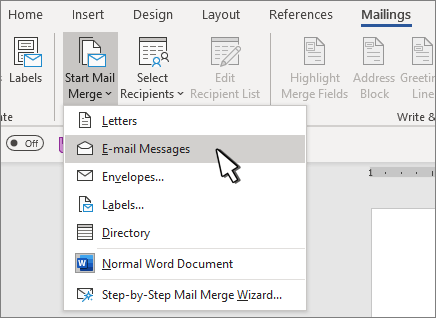
Step 3: Insert fields you want to mail merge outlook
- Click "Select Recipients" to choose your address book.
- From the Mailings tab, click "Insert Merge Field" to select the fields you want to integrate into your email like name or company.
Now it is possible to start creating messages with variables. By clicking on Greeting Lines you can add Greeting Lines to a document.
The formatting field allows you to enter any text you want!
Step 4: Preview and Finish
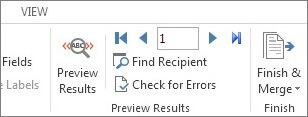
- Preview your emails by clicking on "Preview Results".
This will give you a sample of how your emails will look once they are sent out to your prospects.
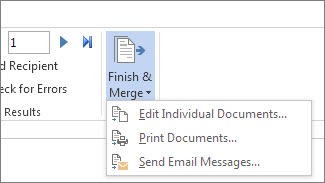
- Click on "Finish & Merge" when you're done prevewing and reviewing all the fields.
👉🏼 Try folk now to track opens and clicks on your mail merge campaigns
Outlook Mail Merge email limits
Though very useful, Outlook mail merge has several limitations for sales teams:
- No analytics, tracking, or way to see which prospects have opened, clicked or replied
- It's only compatible for Outlook email address and can't be used with Gmail accounts
- It's limited to individual use, meaning the results can't be shared with other sales teammates, and therefore it's not collaborative
- The UX is outdated and clunky
- You must toggle between three different applications (Microsoft Word, Excel, and Outlook) to send merged emails
- You'll need to opt-in for an Office 365 subscription (which starts at $12.50/user per month for business use) or use proprietary versions of the software ($249.99 for one computer) to use Outlook mail merge
👉🏼 Try folk now to manage contact-based reminders with your team and never miss a follow-up
Why use mail merge in Outlook?
Personalization is key when it comes to sales outreach. By using mail merge tools and variables such as [firstname], [lastname], [companyname], and [jobtitle], we can create customized and targeted messages that make the prospect feel special and valued.
When an email feels personalized, it's more likely to catch the reader's attention and encourage them to engage with the content. This can lead to higher open rates, click-through rates, and ultimately, more conversions for your sales team.
If you want to take your sales outreach to the next level, consider using mail merge tools and personalization variables to create more effective and engaging campaigns.
The Best Mail Merge Tools for Outlook
There are various mail merge tools for Outlook that sales teams can use. The most popular are Gmass, folk, Yamm, Mixmax, and Streak.
| Инструмент | Рейтинг | Интеграция с Outlook | CRM features | Free trial |
|---|---|---|---|---|
| народный | ⭐⭐⭐⭐⭐ | ✔️ | ✔️ | ✔️ (14 days) |
| GMass | ⭐⭐⭐ | ❌ | ❌ | ✔️ (7 days) |
| Ямм | ⭐⭐⭐ | ❌ | ❌ | ✔️ (free plan) |
| Mixmax | ⭐⭐⭐⭐ | ✔️ | ❌ | ✔️ (free plan) |
| Серия | ⭐⭐⭐⭐ | ❌ | ✔️ | ✔️ (14 days) |
народный
⭐⭐⭐⭐⭐
folk CRM is the best solution for sales teams of 20-50 people who need a simple CRM system with powerful mail merge capabilities. It's designed specifically for mid-size teams who outgrow basic tools but don't need enterprise complexity.
Основные характеристики
- Contact sync, so you can import contacts from any source, like Gmail, Microsoft Outlook, LinkedIn, Twitter, csv files, custom integrations, or any other data source
- Contact enrichment, that fills in missing contact information in moments
- Organize contact lists, create contacts groups in order to categorize them your way
- AI Support, build custom fields, such as an icebreaker, greeting line, a personalized subject line, or anything else you need, generated in seconds with AI
- Pipeline management, build custom pipelines from an existing list of contacts
- Email marketing, use the mail merge function to access all your contacts and create email sequences
- Track synced interactions (such as email messages or calendar events) directly in folk
- Team collaboration, build on each others notes to create one source of truth across your team, set reminders, see last interactions and more
For mail merge, when customizing your email on folk, it's very easy to insert variable fields as shown in the image below
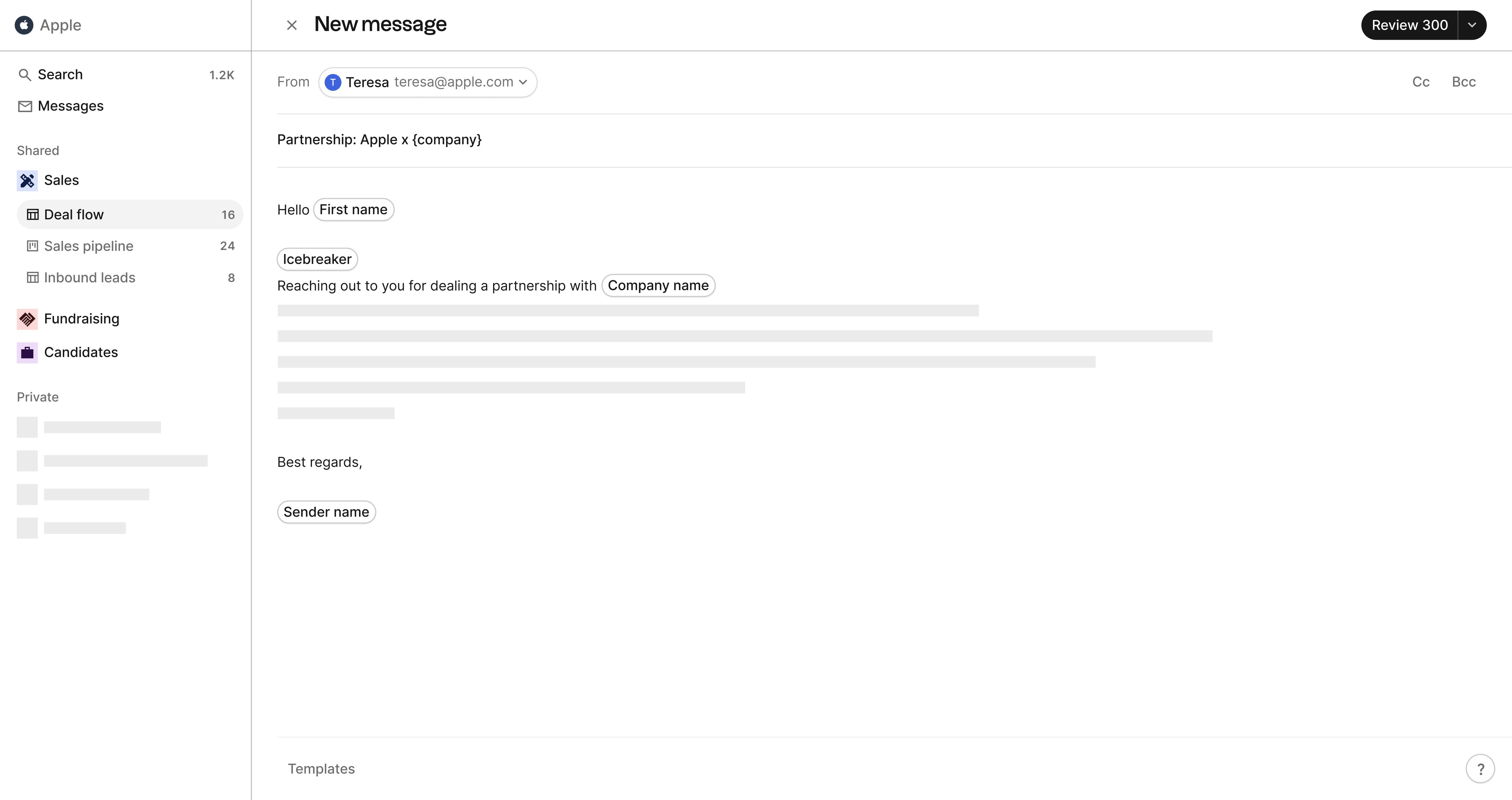
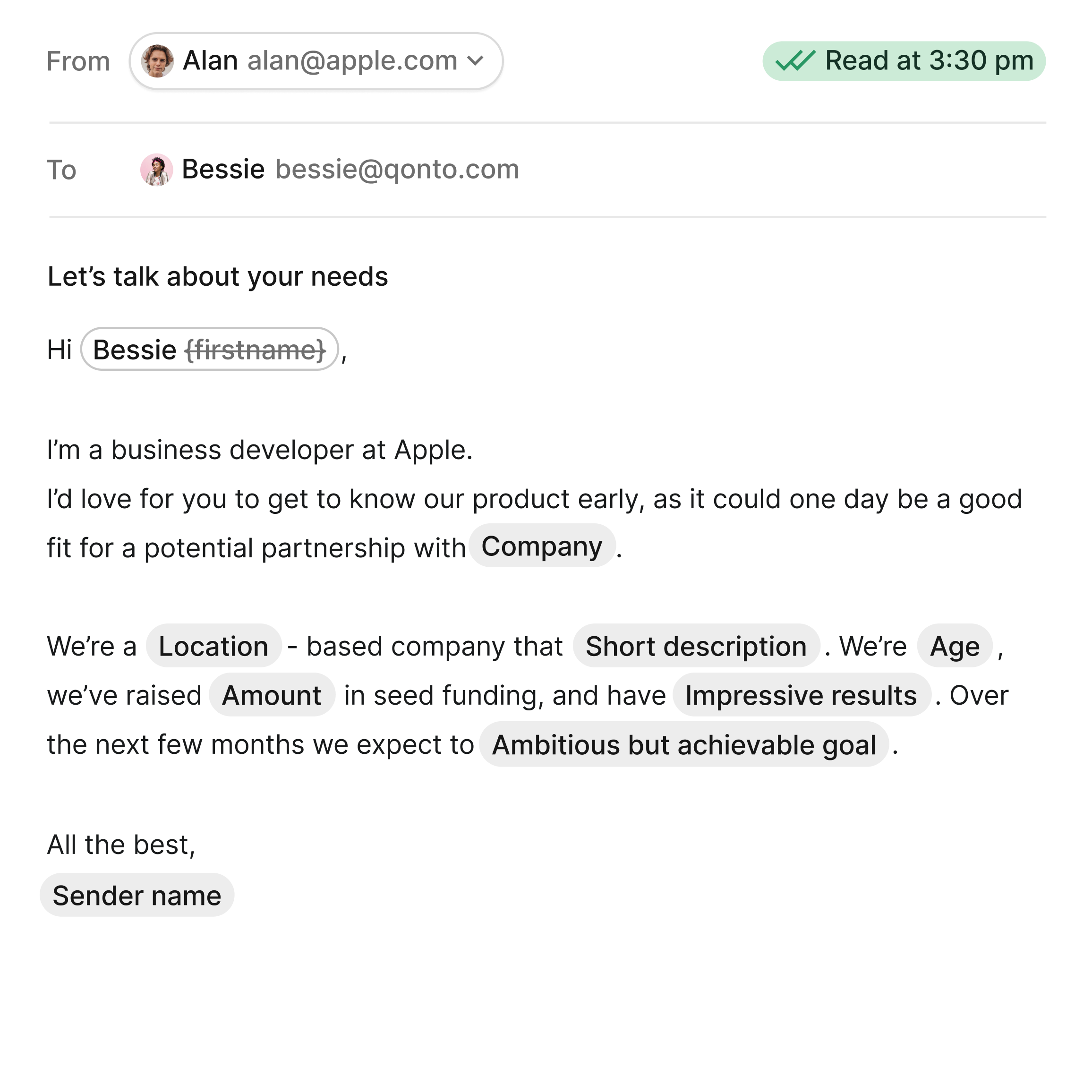
Utilize Folk's AI feature, Magic Field, to go beyond just using a first name. Leverage the data you have on your contacts to personalize messages for better sales outcomes.
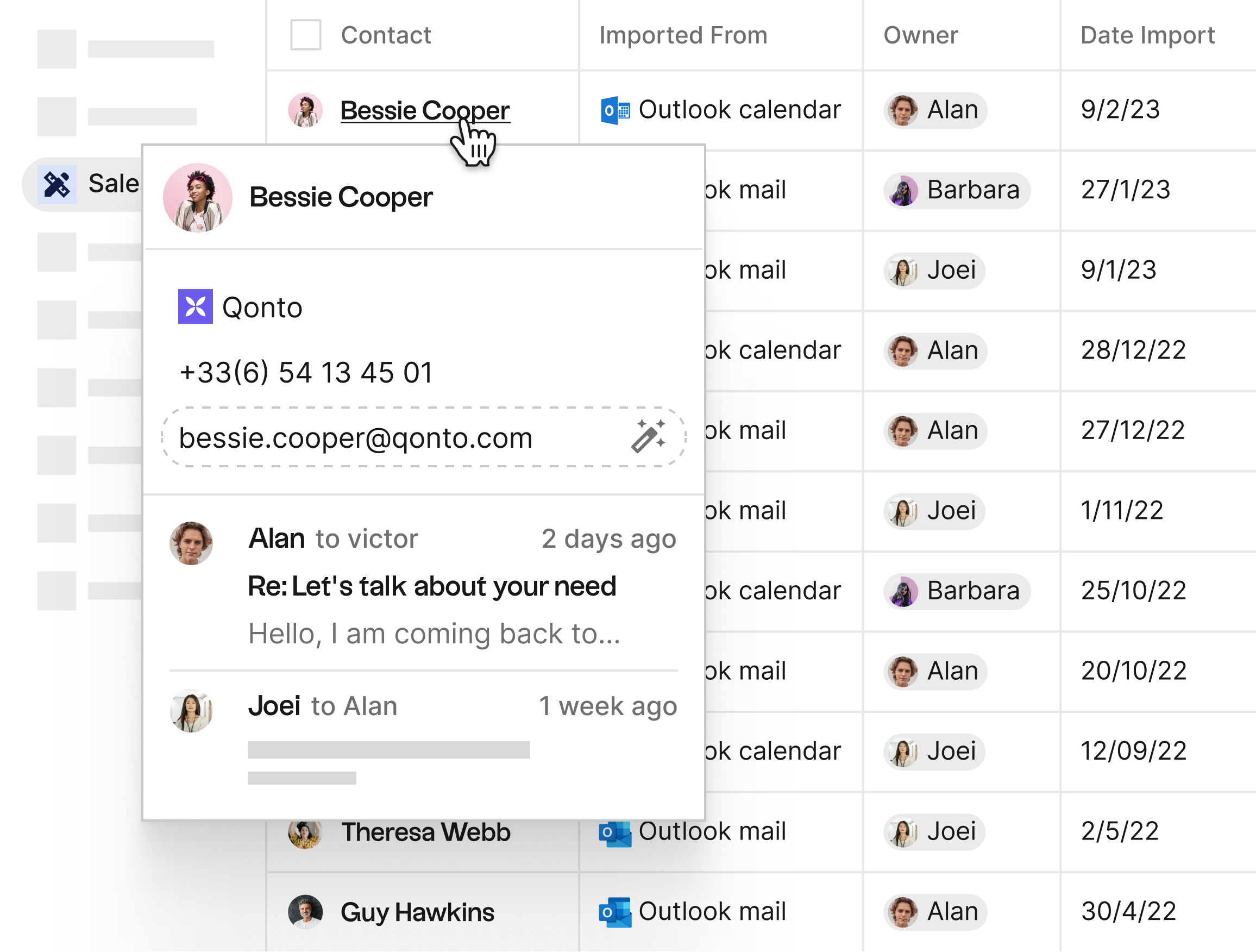
Get full context on each contact to make sending personalized mail merges easier. Track interactions, including emails, calendar events, and other details you add manually.
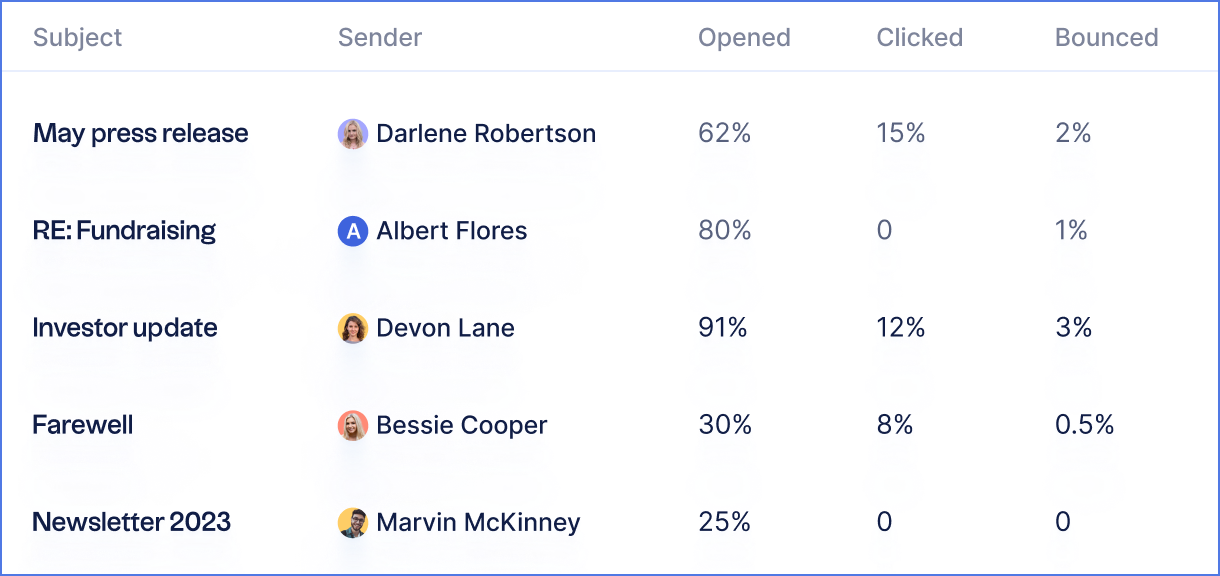
It's also easy to track the results of the campaigns by viewing opened, clicked and bounced rates.
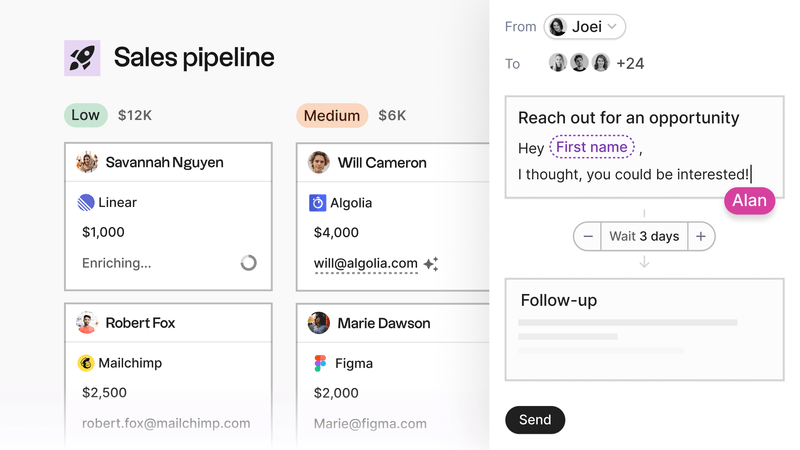
Try the new email sequences in folk's latest update. Create email journeys within the CRM platform. Use it for sales outreach, prospecting, or client nurturing.
Discover the best practice for sending email sequences!
Плюсы
- Простой в использовании интерфейс (похожий на Notion)
- Можно быстро найти утерянные адреса электронной почты с помощью обогащения
- Предлагает бесплатный тариф без ограничения по времени
- Интегрируется с Outlook и Gmail
- Предлагает подробную аналитику по открытиям и кликам по электронной почте
- Совместная работа, подходит для команд или отдельных пользователей
- Встроен в CRM, который включает управление трубопроводом, отслеживание электронной почты, напоминания, заметки и многое другое.
- AI feature called 'Magic Field' helps you write personalized emails faster
- Automatic de-duplication of contacts
- Automate manual tasks such as grouping contacts
- New email sequence feature
Минусы
- Limited credits for the free plan
👉 Попробуйте folk CRM бесплатно
Gmass
⭐⭐⭐
Gmass is an email marketing tool that allows you to send personalized mass emails with ease. It has a user-friendly interface and integrates easily with Gmail but has no Outlook integration.
Основные характеристики
- Turns Gmail into email marketing and cold email platform
- AB testing
- Mail merge personalization with Google Sheets

Плюсы
- Простой в использовании интерфейс
- Может отправлять персонализированные письма с помощью функции слияния
- Может отслеживать открытия и клики по электронной почте
- Поддерживает отправку последующих электронных писем
- Имеет доступный тарифный план
Минусы
- Ограниченная интеграция с другими платформами
- Нет встроенной функциональности CRM
Ямм
⭐⭐⭐
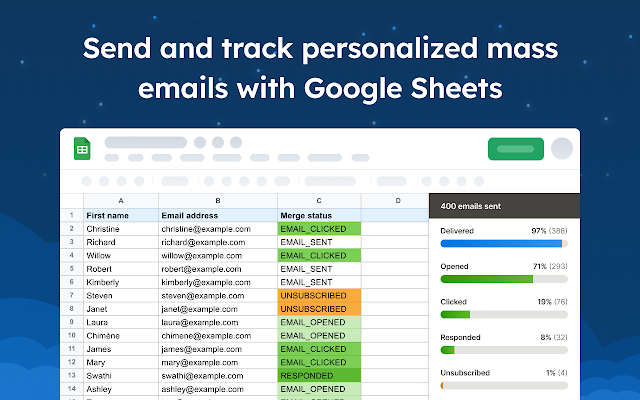
Yamm (Yet Another Mail Merge) is a mail merge tool for Gmail that allows you to send personalized emails in bulk. It is an excellent tool for businesses looking to streamline their email outreach process.
Основные характеристики
- Send with an alias, cc and bcc
- Create email surveys such as simple polls that recipients can answer from their inbox
- Template library, including ready-to-use templates and advanced HTML emails
Плюсы
- Интеграция с Google Sheets
- Отправляет персонализированные электронные письма
- Может отслеживать открытия и клики по электронной почте
- Предлагает бесплатный тарифный план
Минусы
- Ограниченная интеграция с другими платформами
- Бесплатный тариф имеет ограниченные возможности
- Для использования требуется учетная запись Google
- Нет слияния почты Outlook
- Неудобный интерфейс
Mixmax
⭐⭐⭐⭐
Mixmax is an email tracking and automation tool that integrates with Gmail. It offers a wide range of features such as email scheduling, automated follow-ups, and CRM integration.
Key features:
- Sales and customer success focus
- Salesforce integration lets you create a trigger that updates Salesforce without data entry

Плюсы
- Интегрируется с популярными CRM-системами
- Отправляет персонализированные электронные письма
- Может отслеживать открытия и клики по электронной почте
- Предлагает бесплатный тарифный план
Минусы
- Ограниченная интеграция с другими платформами
- Слишком сложный, тяжелый
- Бесплатный тариф имеет ограниченные возможности
- Может быть дорогостоящим
Серия
⭐⭐⭐⭐
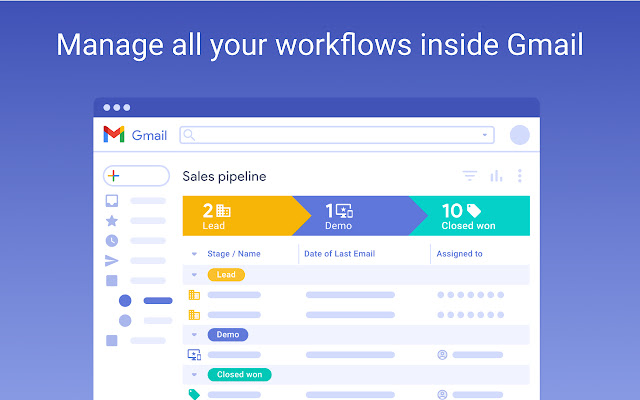
Streak is a CRM tool that integrates with Gmail. It allows you to manage your sales pipeline, track emails, and collaborate with your team.
Основные характеристики
- Gmail integration, seamlessly integrates with your Gmail allowing you to manage your CRM within the email interface
- Email tracking, to see when recipients read emails helping aguage timing for follow-ups and interest level
- Mobile application, log calls and send contacts to your phone
Плюсы:
- Интеграция с Gmail
- Easy to use interface
- Управляет каналом продаж
- Предлагает бесплатный тарифный план
Минусы:
- Ограниченная интеграция с другими платформами
- Нет веб-приложения, можно использовать только напрямую из интерфейса Gmail
- Может не иметь всех функций других инструментов CRM
- Бесплатный тариф имеет ограниченные возможности
Заключение
Mail merge is an effective way to send personalized emails to numerous prospects without wasting time and effort. But it can be hard to mail merge Outlook contacts with a simple process.
With the simple steps above and the tools comparison provided, you can easily perform a mail merge in Outlook or choose the tool that best fits your sales team. This way, you get to send personalized emails to prospects and clients, and also dedicate your time and attention to other pressing sales activities.
Часто задаваемые вопросы
Как выполнить слияние почты в Outlook?
Prepare contacts in Excel. In Word: Mailings → Start Mail Merge → E‑mail Messages. Select Recipients, insert merge fields, write the message, then Finish & Merge to send via Outlook.
Can Outlook mail merge send attachments?
No. Word/Outlook mail merge cannot attach files. Use an add‑in or a CRM that supports attachments and tracking, such as folk.
What are Outlook mail merge sending limits?
Limits vary. In Exchange Online: about 10,000 recipients/day, 500 recipients/message, and ~30 messages/min. Large sends may be throttled; batch sends and add delays for deliverability.
How can opens and clicks be tracked in Outlook mail merge?
Native mail merge has no analytics. To track opens, clicks, and replies, use an add‑in or a CRM with tracking, such as folk. These tools also enable scheduling and automated follow‑ups.
Откройте для себя народную CRM-систему
Как помощник по продажам, которого у вашей команды никогда не было
